

Have you ever wondered why the addresses in D365 Finance is displayed in a certain format?
What if you want to update the address format so that the State and Zip Code is on the next line following the City?
Or perhaps you need to add a comma separator after the Street address?
Fortunately, D365 Finance provides the flexibility to adjust the address format when an address is shown for each countries and this setup can be easily adjusted on the Address setup page (Organization administration > Global address book > Addresses > Address setup)
Under the Country/region tab, you could see the Address format that is attached to each of the country/region.
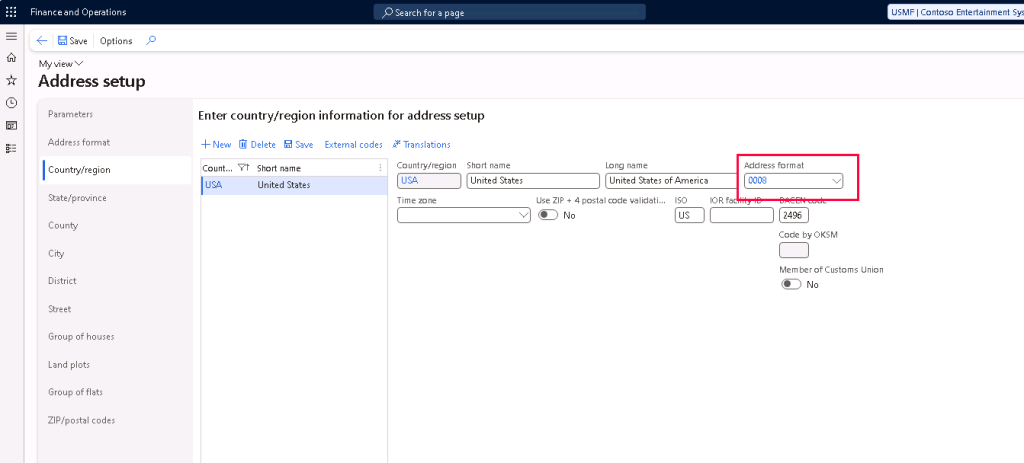
Click on the Address format and it will bring you to the Address format tab for the relevant format.
You could see that there are options to configure the address component.
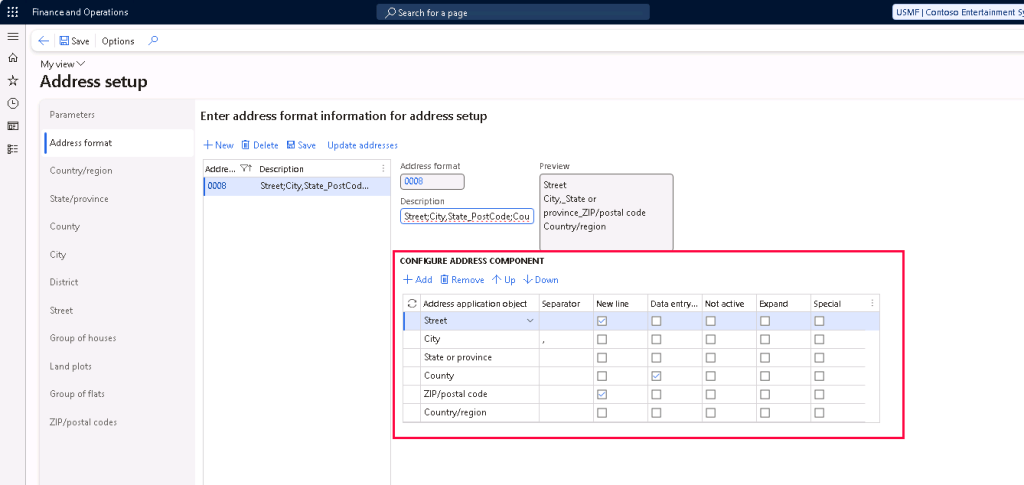
- New line – If this option is selected, the next field will appear in a new line.
- Data entry only – If this option is selected, the component will not be printed on documents and its more for informational purposes only.
- Not active – If this option is selected, the field would not be used in the address format
- Expand – If this option is selected, it will show the full name of the country/state etc. instead of using the code of the address.
In this example, it will create a new line after Street address, add a comma after City, not printing County information, and create a new line after Zip/postal code.
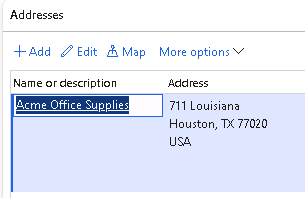
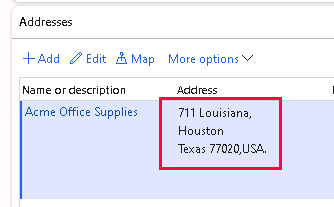
Assuming the address format were to be updated as such:
711 Louisiana,
Houston
Texas 77020, USA.
The address component can be updated to:
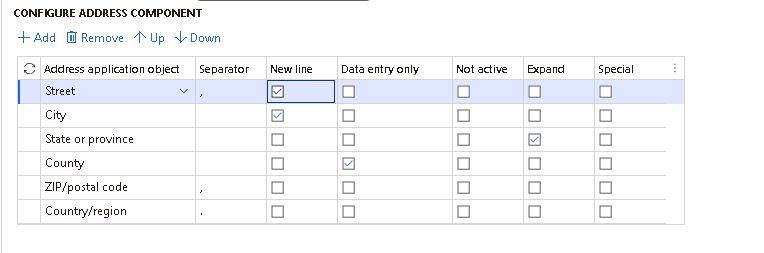
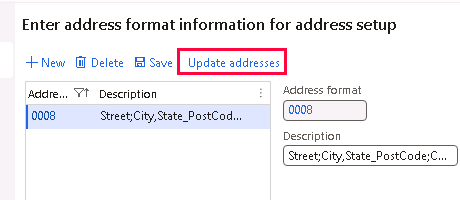
After updating the address component, Save and click on the “Update addresses” button to update all the addresses in the system to display as the updated format. Depending on the volume of addresses in the system, it could take up to 30 mins for the update to complete.
The addresses in the system will then be updated to the format as specified.





Leave a Reply