
For system audit purposes, companies often need to track changes in specific fields to ensure accountability. In D365 Finance, database logging can be enabled for certain tables and fields to achieve this. However, it’s crucial to consider the potential performance issues that may arise from tracking high-volume changes. For more information on Database logging and performance considerations, review Microsoft’s official documentation for guidance.
While most fields are straightforward to set up for database logging, one particularly important field for system auditing is the “Do not allow manual entry” field on the Main account form (General ledger > Chart of accounts > Accounts > Main accounts).
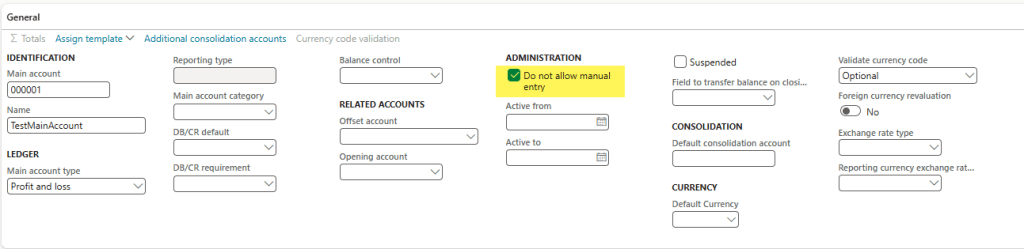
Although this field appears on the Main Account form, it is actually stored in the DimensionAttributeValue table, not in the MainAccount table.
To set up Database logging, navigate to System administration > Setup > Database log > Database log setup.
Click on “+New” to setup the field for database logging.
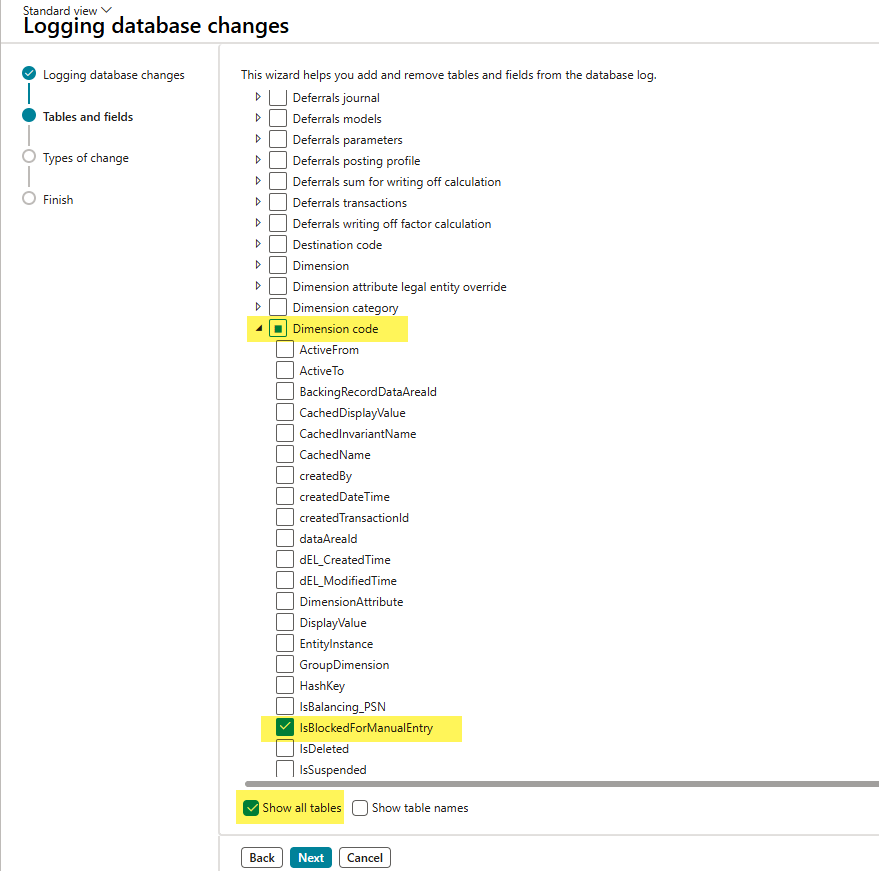
On the “Tables and fields” page, check the box for “Show all tables“. Then, expand the “General ledger” selection. Within that, locate and expand the “Dimension code” selection. You will find a field for “IsBlockedForManualEntry“. Check this box and proceed by clicking Next, where you will choose “Update” as the type of change for this field.
On the Database log setup page, you will now see that the table name “Dimension code” and the field name “Do not allow manual entry” has been added with the type of change set to “Update.”
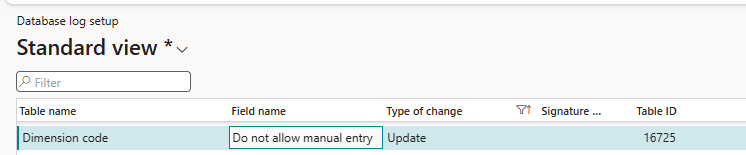
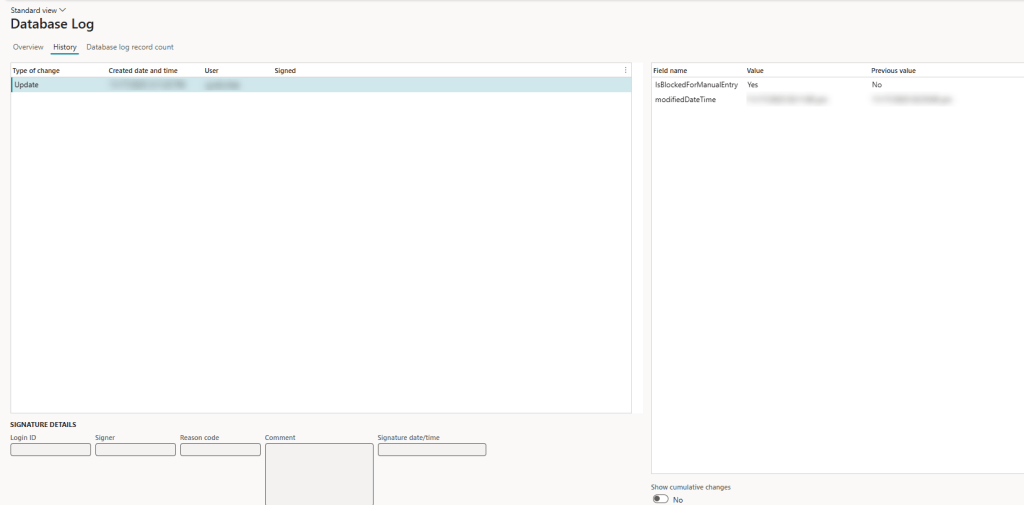
To review Database log, navigate to System administration > Inquiries > Database > Database log. Since the Database log does not allow filtering by Table name, you will have to filter by Table ID instead. To get the Table ID, navigate to the Database log setup page, right-click on the field headers to insert the “Table ID” column. Once you have the Table ID for the “Dimension code” table, return to the Database log page and filter by the Reference table ID.

The “History tab” will show the details on what and when the field was updated.




 D365 Deep Dive
Leave a comment