

Bridging payments are used when there is a timing or process gap between initiating a payment and its final settlement in the bank or clearing account. This commonly occurs when payments are generated in the ERP system before bank confirmation, when files are sent to third‑party payment processors, or when cash needs to be temporarily staged for reconciliation or control purposes. In these scenarios, payments are first posted to a bridge (clearing) account to reflect funds in transit, and later reclassified to the final bank or settlement account once the transaction is confirmed. By configuring bridging payments correctly, organizations can maintain clean cash balances, improve reconciliation accuracy, and gain better visibility into in‑transit funds while aligning operational payment processes with financial reporting requirements to reflect the true status of outstanding payments.
Typically, a bridging payment posting is as below:
When clearing vendor open transaction and posting payment journal
Debit Accounts Payable
Credit Bridging Account
When the bridging payment is cleared
Debit Bridging Account
Credit Bank Account
Bridging payments can be setup in D365 Finance in both Vendor and Customer Method of payments (Accounts payable > Setup > Payment setup > Methods of payment or Accounts receivable > Setup > Payment setup > Methods of payment)
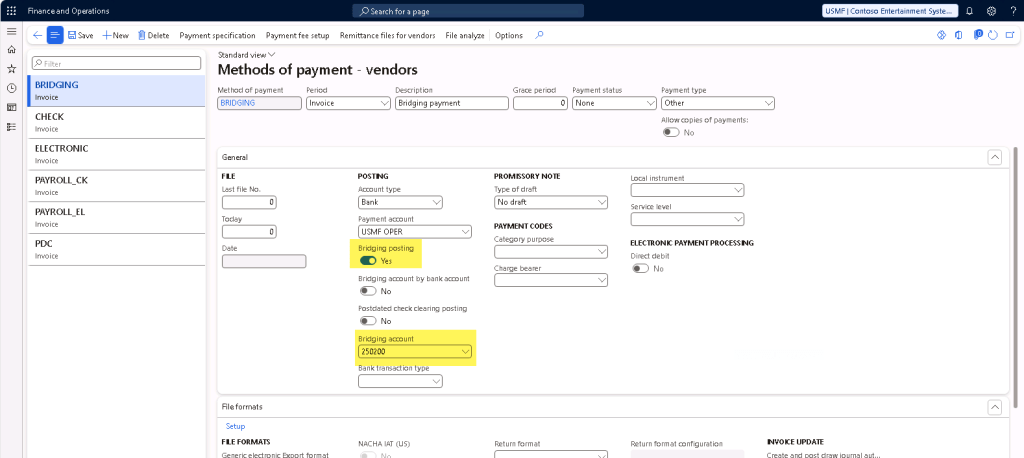
Create a method of payment for the bridging payment, then select “Yes” for Bridging posting and enter the Bridging account number. If the Bridging account should be a bank account, Select “Yes” for Bridging account by bank account and define the bank account.
Then, create a vendor/customer payment journal for the payment details and select the Method of payment of “Bridging”.
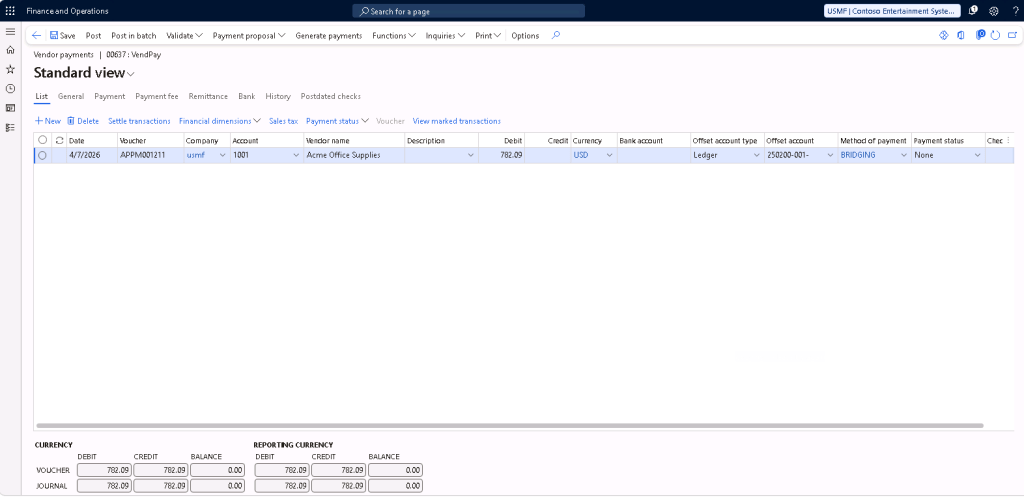
After posting the payment journal, the voucher shows that the payment is offset against the bridging account that was setup previously (250200).

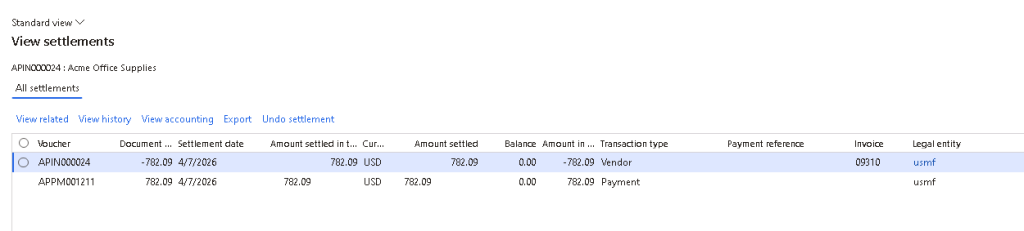
On the vendor transactions, it is also shown that the vendor balance has been settled.
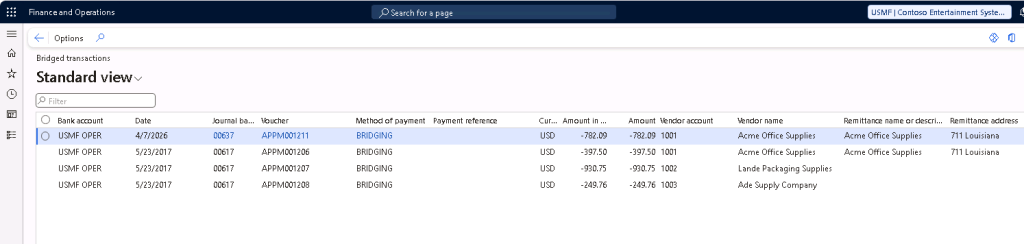
Users can also navigate to Cash and bank management > Inquiries and reports > Bridged transactions to review the bridged transactions report for bridged transactions that were posted but not cleared yet.
When the bridged payment is cleared, users can now create a general journal entry (General ledger > Journal entries > General journal) to clear the bridged transactions from the bridged account.
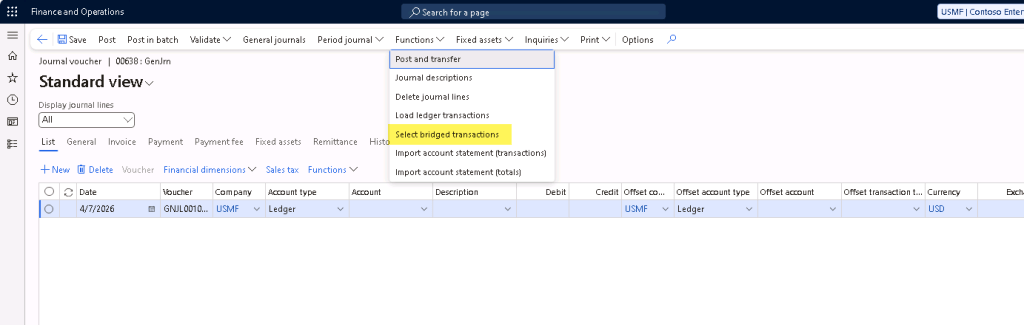
In the journal lines, select Functions > Select bridged transactions.
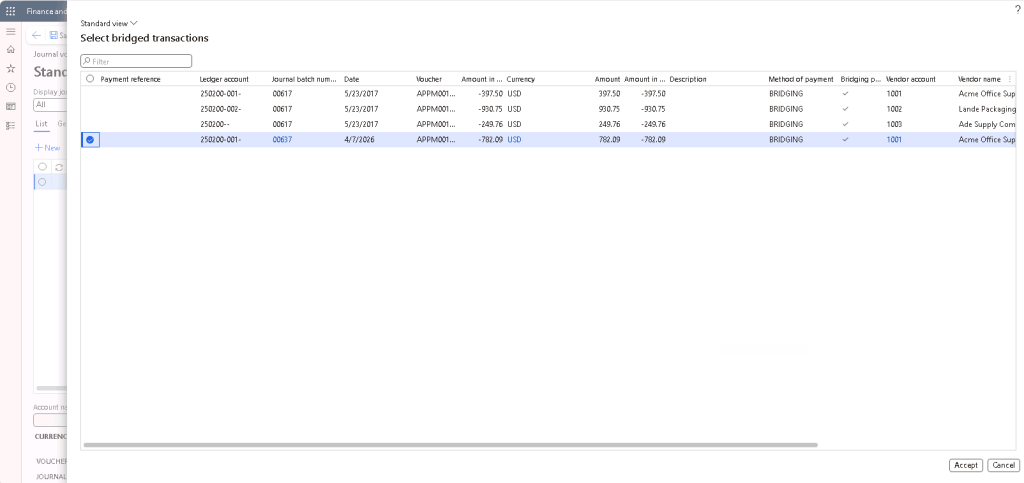
Select the bridged transactions that were cleared, and click “Accept”.
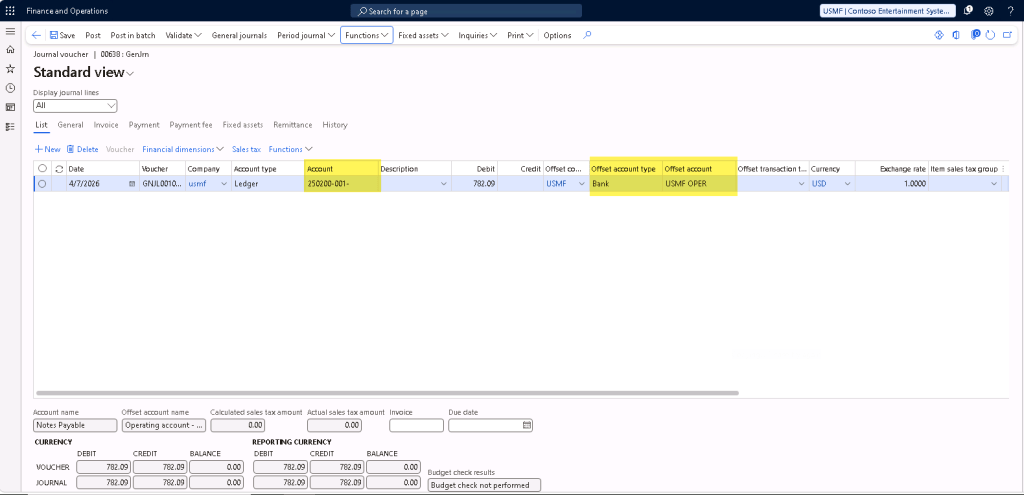
The journal line will be created to clear the bridged payment from the bridging account and offset it against the bank account that was setup in the bridging method of payment earlier.

It is also possible to automatically clear the bridged transactions without needing a user to manually retrieve and post the general journal to clear the transaction. To do so, there is a feature called “Automatic clear bridged transactions through advanced bank reconciliation” which should have already been on by default.
To use this feature, the bank account will need to be setup for “Advanced bank reconciliation”, and have the “Clear bridged transactions during reconciliation” parameter set to “Yes”, as well as have the “Bridging account” defined on the bank account.
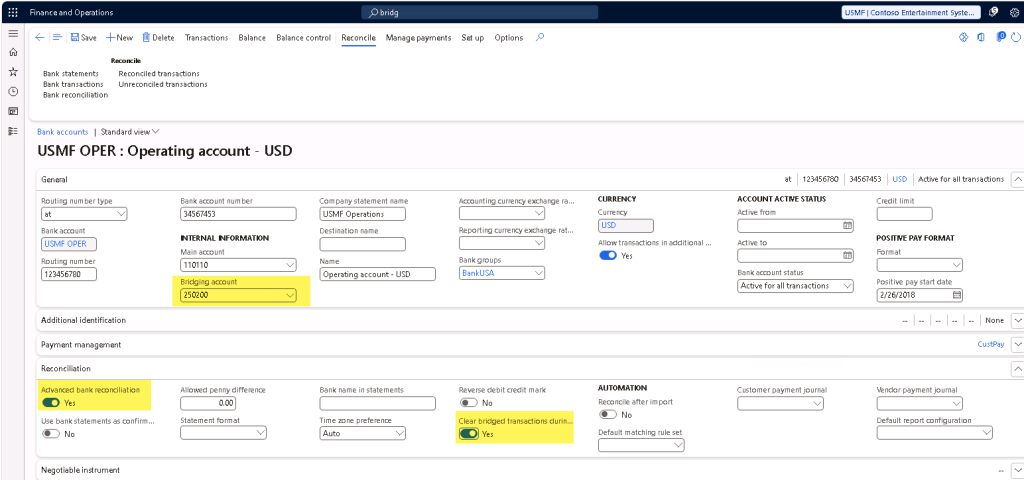
Then, upon completing the bank statement reconciliation and marking it as reconciled, the clearing journals will be automatically posted to the general ledger to clear the bridged payment from the bridging account and offset it against the bank account.



 D365 Deep Dive
Leave a comment