
The Deduction Management for D365 Finance will be divided into three parts as mentioned in Part 1 of my post to cover the various setups and operations involved. The first part will focus on the setup process for deduction management. The second part will explore different methods for entering deductions and their respective outcomes. Finally, the third part will delve into the further processing of deductions within the Deduction Workbench.
Deduction Management: Part 1
Deduction Management: Part 3
In Part 2 of the Deduction Management series, this article will discuss the several ways of entering a deduction for customers:
- Customer Payment Journal
- Deduction Workbench
- Customer Settlement Form
- Customer Page
On a high level, Method #1 posts the deduction to offset the customer balance when a customer payment is received and no claim journal is posted. Whereas Method #2, #3, and #4 are somewhat similar where the deduction can be given at any time (with or without receiving customer payments) and a claim journal will be posted to offset the amount of claim against original invoice and register customer’s debt to the amount of claim while pending claim to be approved.
Method #1 – Customer Payment Journal (with example amounts)
Dr Bank $200
Dr Deduction Type Offset Account $ 10
Cr Customer Balance $190
Method #2 – Deduction Workbench (with example amounts)
Method #3 – Customer Settlement Form (with example amounts)
Method #4 – Customer Page (with example amounts)
Dr Deduction Type Offset Account $10
Cr Customer Balance $10Dr Customer Balance $10
Cr Deduction Type Offset Account $10
There is no real financial impact here when the deduction is posted using Method #2, #3, and #4, until further processing the deduction through the Deduction Workbench (Approve, Deny, Write-off, etc.)
Create Deduction through Customer Payment Journal
Scenario: The customer paid an invoice through Wire transfer and your bank charged a $20 wire fees for that transaction, resulting in you receiving an amount of $301.75 for a customer invoice that was due for $321.75, and the $20 wire fees will be deducted from the invoice amount owed.
- Navigate to Accounts Receivable > Payments > Customer Payment Journal.
- Create a new journal and enter the payment details on the journal line.
- Click on “Deductions” on the toolbar above the journal lines.

- Enter the deduction type and amount. If this deduction is tied to a known invoice, you may select the invoice number as well.

- Save and return back to the journal lines. You will see that an extra deduction line is created with the offset account as set on the Deduction type setup earlier.

- Post the journal and review the invoice settlement to confirm that the amount owed by customer is settled with the payment and deduction.

- This deduction given will now be sitting in the Deduction workbench (Sales and marketing > Trade allowances > Deduction > Deduction workbench) for further review and investigation. This deduction will have a status of “Open” that allows for further processing upon completing the investigations needed.
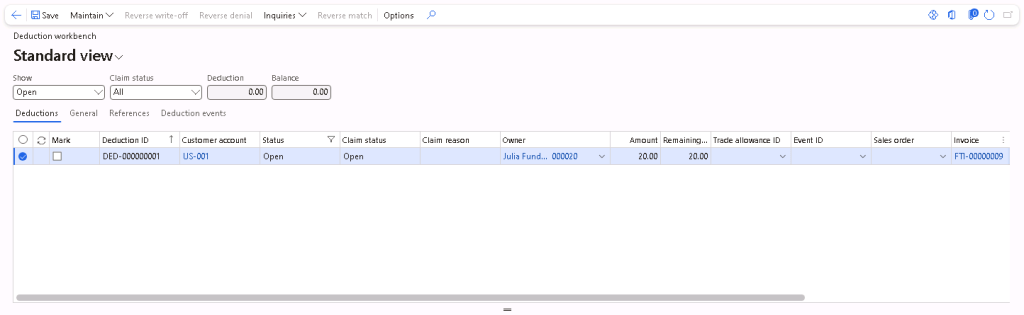
Create Deduction through Deduction Workbench
Scenario: A deduction of $30 is given to customer due to price dispute on an invoice and the customer has not made any payments yet.
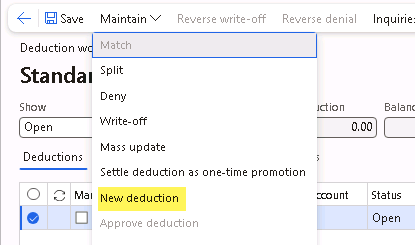
- Navigate to Sales and marketing > Trade allowances > Deduction > Deduction workbench.
- Select Maintain > New deduction.
- Enter the customer account, claim amount, claim basis, claim reason, and other details as needed.
If a claim journal is needed, select “Yes” on Create claim journal when the deduction is created.- Selecting “Yes” will post a general journal by using the claim journal as set up on the AR parameters earlier. When an invoice is attached to the claim, the claim journal will reduce the balance of the invoice. If the claim is later rejected, the claim journal and settlements will be reversed.
- Selecting “No” will not create a claim journal when deduction is created but it will create when the claim is approved. Note that settlement cannot be done without a claim journal.
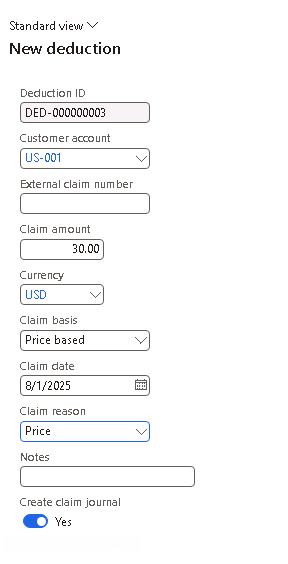
- Click OK and the new deduction is created.
- If “Yes” was selected for Create claim journal, the following transactions are posted via the claim journal (claim journal # can be found on the deduction workbench’s deduction line’s References’ Journal batch number field):
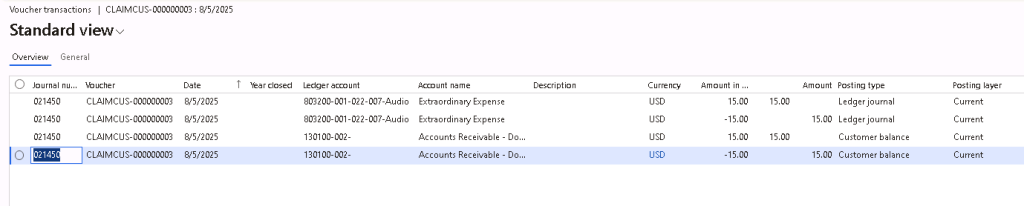
- 2 new customer balance transactions – 1 to offset amount of claim against original invoice; another 1 to register customer debt to amount of claim pending approval.
- 2 new offset transactions as defined on the Deduction types offset account setup earlier.

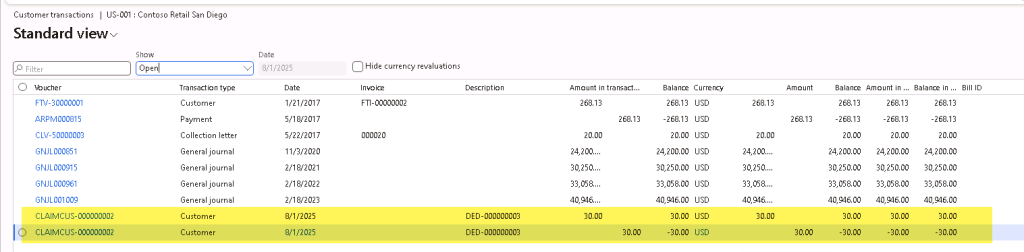


- This deduction given will now be sitting in the Deduction workbench (Sales and marketing > Trade allowances > Deduction > Deduction workbench) for further review and investigation. This deduction will have a status of “Open” that allows for further processing upon completing the investigations needed.

Create Deduction through Customer Settlement Form
Scenario: A deduction of $5 discount was given to a customer invoice and payment is not made by customer yet.
- Navigate to Accounts receivable > Customers > All customers.
- Select the customer to create a deduction for. Then click on Collect > Settle > Settle transactions on the ribbon.
- Select the line of invoice where the deduction should be created, and select Deductions > New deduction.
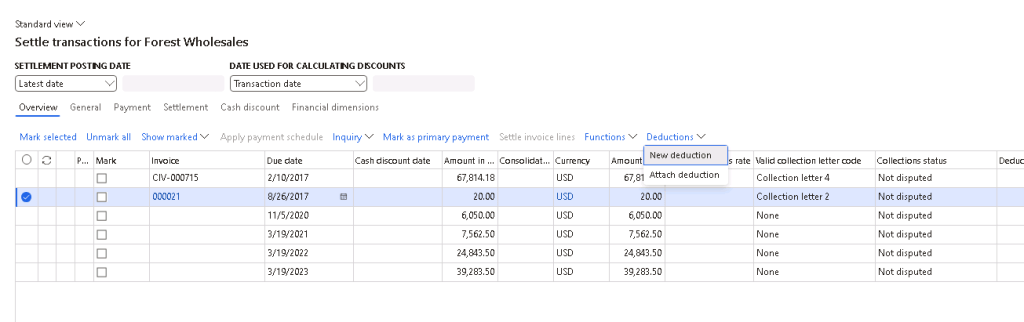
- Similar to entering a new deduction through the deduction workbench, enter the claim amount, claim basis, claim reason, and other details as needed.
If a claim journal is needed, select “Yes” on Create claim journal when the deduction is created.- Selecting “Yes” will post a general journal by using the claim journal as set up on the AR parameters earlier. When an invoice is attached to the claim, the claim journal will reduce the balance of the invoice. If the claim is later rejected, the claim journal and settlements will be reversed.
- Selecting “No” will not create a claim journal when deduction is created but it will create when the claim is approved. Note that settlement cannot be done without a claim journal.
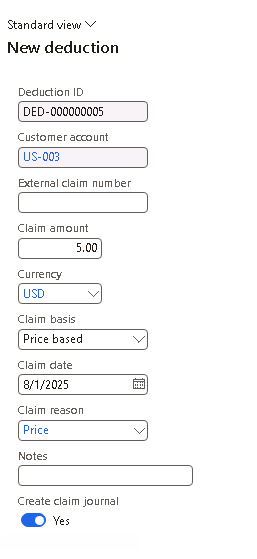
- Click OK and the new deduction is created. This deduction is also now marked for settlement with the invoice selected. You may only Post this settlement if Create claim journal is set to “Yes”.

- Review that a claim journal is posted with 2 new customer transactions and 2 new offsetting transactions, and the deduction is now created on the deduction workbench attached to the invoice selected with an “Open” status.



Note that 1 of the customer transactions created has $0 balance as it was already settled when we click on “Post” on the Customer settlement page in the previous step. This can be confirmed by viewing the settlements for this invoice/deduction as well.
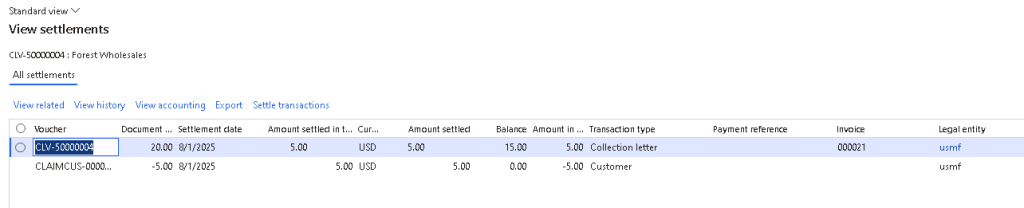
Create Deduction through Customer Page
Scenario: A deduction of $20 is given to customer for a one-time promotion.
- Navigate to Accounts receivable > Customers > All customers.
- Select the customer to create a deduction for. Then click on Collect > Deductions > Create deductions on the ribbon.
- Similar to entering a new deduction through the deduction workbench, enter the claim amount, claim basis, claim reason, and other details as needed.
If a claim journal is needed, select “Yes” on Create claim journal when the deduction is created.- Selecting “Yes” will post a general journal by using the claim journal as set up on the AR parameters earlier. When an invoice is attached to the claim, the claim journal will reduce the balance of the invoice. If the claim is later rejected, the claim journal and settlements will be reversed.
- Selecting “No” will not create a claim journal when deduction is created but it will create when the claim is approved. Note that settlement cannot be done without a claim journal.

- Click OK and the new deduction is created.
- If “Yes” was selected for Create claim journal, the following transactions are posted via the claim journal (claim journal # can be found on the deduction workbench’s deduction line’s References’ Journal batch number field):
- 2 new customer balance transactions – 1 to offset amount of claim against original invoice; another 1 to register customer debt to amount of claim pending approval.
- 2 new offset transactions as defined on the Deduction types offset account setup earlier.


- On the deduction workbench, this deduction will have a status of “Open”

What if “Create claim journal” is set to “No” upon creating deductions?
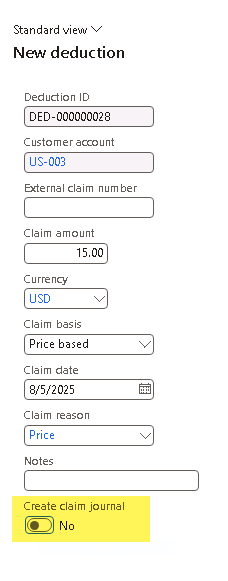
No journal will be posted upon creating the new deduction.
This deduction created will stay as “Created” status instead of “Open” as seen in previous scenarios where the claim journal is created upon creating the deduction.

User will still be allowed to attach an invoice to the deduction or attach the deduction to credit.
Since this is a price based claim, when the deduction is approved on the Deduction workbench, it will create a free text invoice to post the deduction. (If it was a quantity based claim, a negative sales order or return order will be created instead) – See Part 3 for approving the deduction on deduction workbench
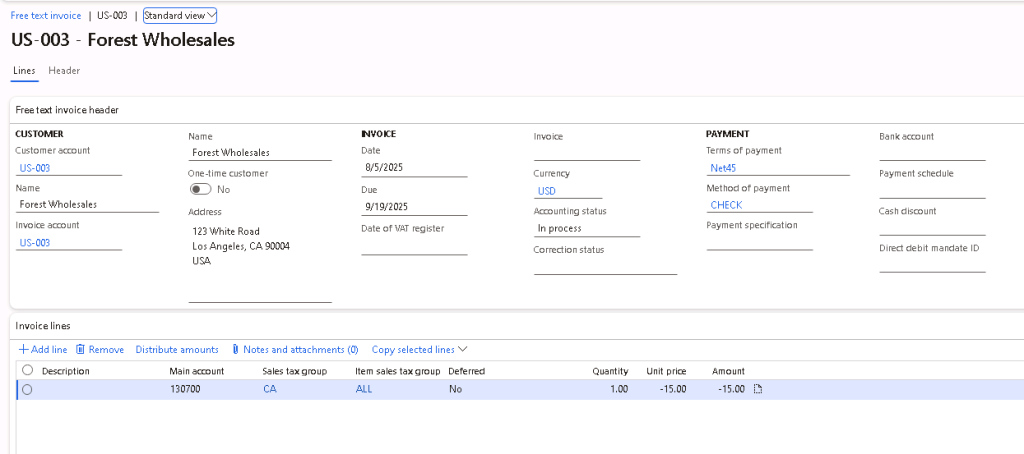
When the free text invoice is posted, it will also post the claim journal. User can then manually settle the transactions as needed.





 D365 Deep Dive
Leave a comment