

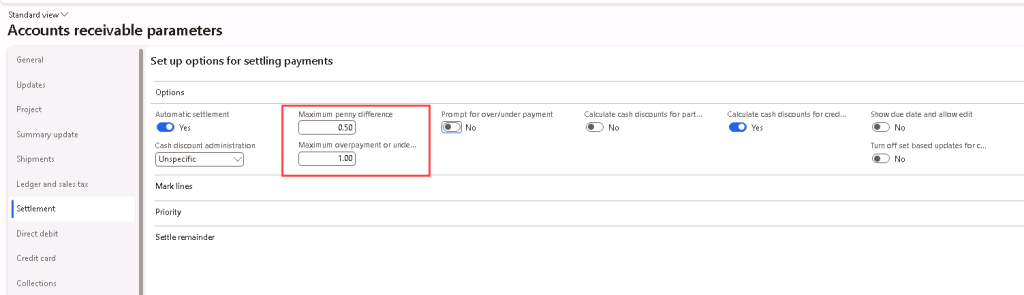
Understanding cash settlements settings in D365 can be challenging, especially when it comes to applying settlements to open invoices and handling minor discrepancies or over/underpayments. This blog post will explore the effects of the Accounts Receivable and Accounts Payable Parameters’ “Maximum penny difference” and “Maximum overpayment or underpayment” settings. It’s important to note that these amounts, defined in the parameters, are in the Accounting Currency of the legal entity.
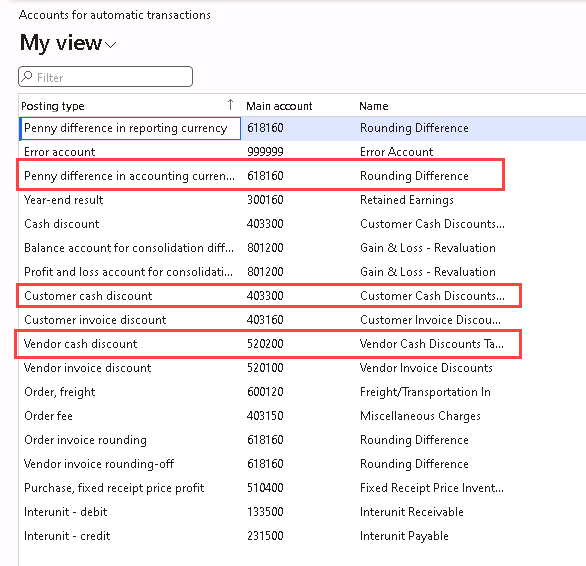
To specify which main accounts should the penny differences or over/underpayments post to, navigate to General ledger > Posting setup > Accounts for automatic transactions, and define the main accounts for Penny difference in accounting currency, Vendor cash discount, and Customer cash discount.
| Maximum penny difference amount | Maximum overpayment or underpayment amount | Over/Underpayment amount posted to |
|---|---|---|
| =< | < | Penny difference in accounting currency |
| > | =< | AR: Customer cash discount AP: Vendor cash discount |
| > | > | Not written off |
Another setting worth noting on the AR / AP Parameters is the “Automatic settlement” setting.
| Automatic settlement | Underpayment | Overpayment |
|---|---|---|
| Yes | Underpaid amount will be written off automatically based on the settlement priority if it meets the criteria as setup on the “Maximum penny difference” and “Maximum overpayment or underpayment” settings | User will have to manually select the invoices that needs to be settled against, either during payment posting or after payment is posted and doing it through the Settlement form, and the overpaid amount will be written off if it meets the criteria as setup on the “Maximum penny difference” and “Maximum overpayment or underpayment” settings |
| No | User will have to manually select the invoices that needs to be settled against, either during payment posting or after payment is posted and doing it through the Settlement form, and the underpaid amount will be written off if it meets the criteria as setup on the “Maximum penny difference” and “Maximum overpayment or underpayment” settings | User will have to manually select the invoices that needs to be settled against, either during payment posting or after payment is posted and doing it through the Settlement form, and the overpaid amount will be written off if it meets the criteria as setup on the “Maximum penny difference” and “Maximum overpayment or underpayment” settings |
Scenario 1:
Maximum penny difference = 1.00
Maximum overpayment or underpayment = 1.00
Customer invoice balance = $544.56
Customer payment = $544.00 (underpaid $0.56)
Since underpayment is less than both the Maximum penny difference and Maximum overpayment or underpayment, the underpaid amount of $0.56 is posted to the Penny difference in accounting currency account.


Scenario 2:
Maximum penny difference = 1.00
Maximum overpayment or underpayment = 1.00
Customer invoice balance = $154.65
Customer payment = $155.00 (overpaid $0.35)
Since overpayment is less than both the Maximum penny difference and Maximum overpayment or underpayment, the overpaid amount of $0.35 is posted to the Penny difference in accounting currency account.


Scenario 3:
Maximum penny difference = 0.50
Maximum overpayment or underpayment = 1.00
Customer invoice balance = $458.84
Customer payment = $458.00 (underpaid $0.84)
Since underpayment is more than the Maximum penny difference but less than the Maximum overpayment or underpayment, the underpaid amount of $0.84 is posted to the Customer cash discount account.


Scenario 4:
Maximum penny difference = 0.50
Maximum overpayment or underpayment = 1.00
Vendor invoice balance = $235.80
Vendor payment = $235.00 (underpaid $0.80)
Since underpayment is more than the Maximum penny difference but less than the Maximum overpayment or underpayment, the underpaid amount of $0.84 is posted to the Vendor cash discount account.


Scenario 5:
Maximum penny difference = 0.50
Maximum overpayment or underpayment = 1.00
Customer invoice balance = $356.47
Customer payment = $356.00 (underpaid $0.47)
Since underpayment is less than both the Maximum penny difference and Maximum overpayment or underpayment, the underpaid amount of $0.47 is posted to the Penny difference in accounting currency account.


Scenario 6:
Maximum penny difference = 0.50
Maximum overpayment or underpayment = 1.00
Customer invoice balance = $541.25
Customer payment = $540 (underpaid $1.25)
Since underpayment is more than both the Maximum penny difference and Maximum overpayment or underpayment, the underpaid amount of $1.25 is not written off and it stays as an open balance on the customer’s account.

Scenario 7:
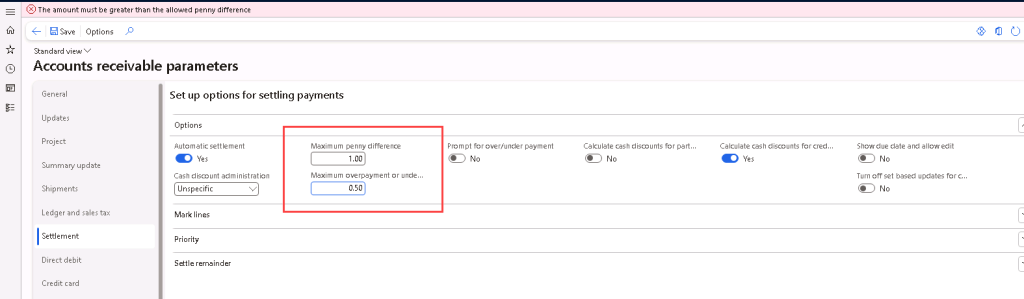
Maximum penny difference = 1.00
Maximum overpayment or underpayment = 0.50
This set up is not allowed for AR parameters, however it is allowed for AP parameters (see Scenario 8).
Scenario 8:
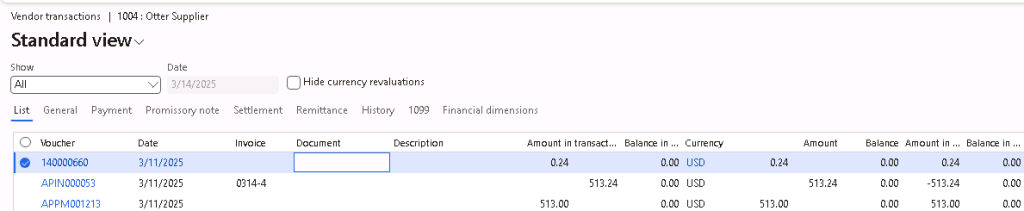
AP Maximum penny difference = 1.00
AP Maximum overpayment or underpayment = 0.50
Vendor invoice balance = $513.24
Vendor payment = $513 (underpaid $0.24)
Since underpayment is less than both the Maximum penny difference and Maximum overpayment or underpayment, the underpaid amount of $0.24 is posted to the Penny difference in accounting currency account.





Leave a Reply