

On my previous blogpost, I discussed the new feature called “Prepayment customer invoice feature” that was introduced in Version 10.0.41. D365 Finance had always allow booking for Customer prepayments (Customer deposits) without paying against an invoice before the new feature was introduced where users could record the prepayments received from the customer without applying the prepayment to any open invoice, and the prepayment balance will sit in the customer balance until it is applied to the final customer invoice. This blogpost will walkthrough the scenario for the Prepayment function without an invoice.
See related posts:
Customer Prepayment Invoice Feature
Vendor Prepayment Invoice
Vendor Prepayment without an Invoice
When to use customer prepayment invoicing vs. customer prepayments?
| Prepayment invoicing | Prepayments |
| A prepayment invoice is created | No prepayment invoice needs to be created |
| Payment is applied to the prepayment invoice | Payment is not applied to any invoices |
| Prepayment value is defined on the sales order | No prepayment value is defined on the sales order |
| Only 1 prepayment can be defined and received for 1 sales order | No limit of number of prepayments to be received from customer |
| Liability for prepayment is held in the AR account. | Liability for prepayment is held in the prepayment account, not the AR account |
| The customer balance does not reflect the prepayment amount received from the customer | The customer balance reflects the prepayment amount received from the customer until it is applied to the customer invoice. |
| Prepayment collected will be reversed and applied to the final sales order invoice amount automatically through the ” Automated prepayment settlement posting” background process | User needs to manually apply the prepayment amount to settle against the customer invoice balance. |
| Depending on the AR Parameter setup, the prepayment amount will automatically be applied to the sales order invoice or a warning message will appear if the prepayment amount received is not applied to the customer invoice upon creating the sales order invoice | No warning or indication if the prepayment amount is not applied to the customer invoice. |
The customer prepayment function has 3 major steps with the following accounting implications:
- Receive prepayment from customer
Debit Bank $500
Credit Prepayment $500
- Post sales order invoice for customer
Debit Accounts receivable $1,900
Credit Revenue $1,900
- Settle and apply prepayment to sales order invoice
Debit Prepayment $500
Credit Accounts receivable $500
Complete the necessary setups
Navigate to Accounts receivable > Setup > Customer posting profiles and create the Customer posting profile for prepayments

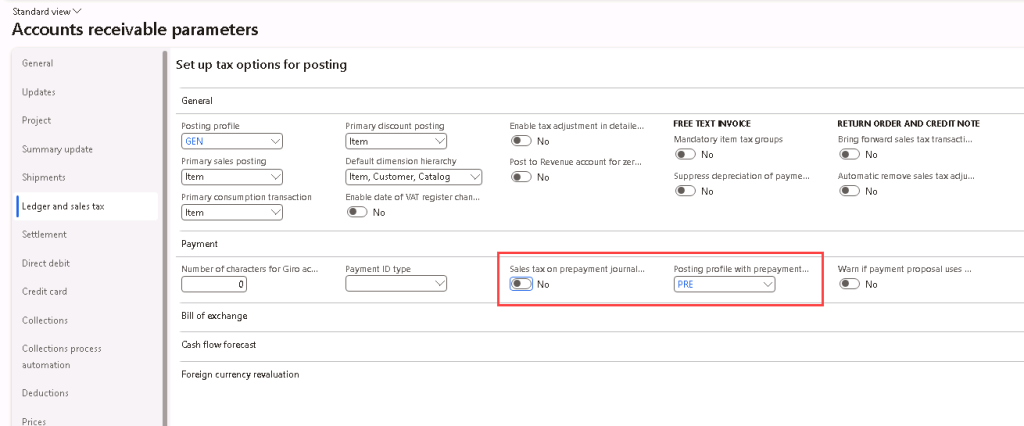
Navigate to Accounts Receivable > Setup > Accounts Receivable Parameters, under the Ledger and sales tax tab > Payment section, set the Posting profile with prepayment journal voucher with the posting profile created in the previous step for prepayment.
You can also choose to define if Sales tax should be calculated on prepayment journal voucher by toggling the field “Sales tax on prepayment journal voucher”.
Step 1: Receive Prepayment from Customer
Create Customer payment journal for prepayment received (Accounts receivable > Payments > Customer payment journal).
Enter the prepayment amount in the credit field.

Under the Payment tab, select “Yes” for Prepayment journal voucher. Notice that the Posting profile will be updated to the posting profile created for prepayment in the setup.
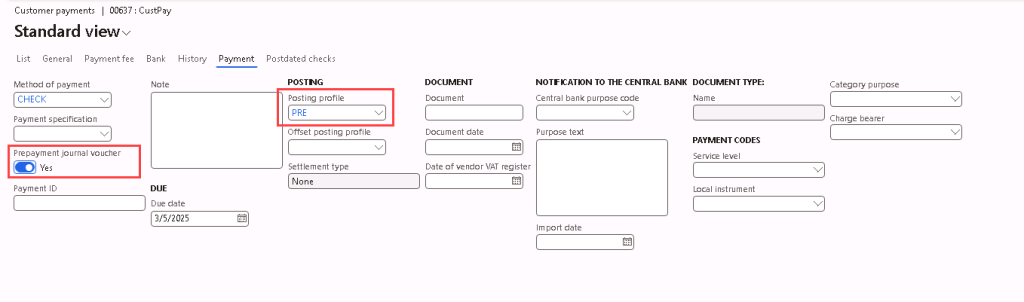
Post the customer payment journal.


Step 2: Create and Post Sales Order Invoice for Customer
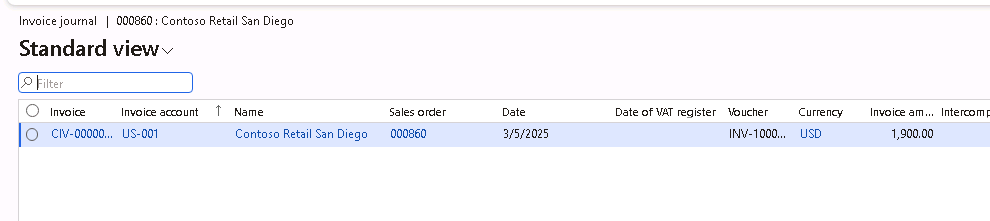
Navigate to Accounts receivable > Orders > All sales orders and create a Sales Order for the customer and post the sales order invoice.



Step 3: Settle and Apply Prepayment with Sales Order Invoice
Navigate to Accounts receivable > Customers > All customers, find the customer, and click on Customer > Transactions on the ribbon.
Click on Settlement > Settle transactions
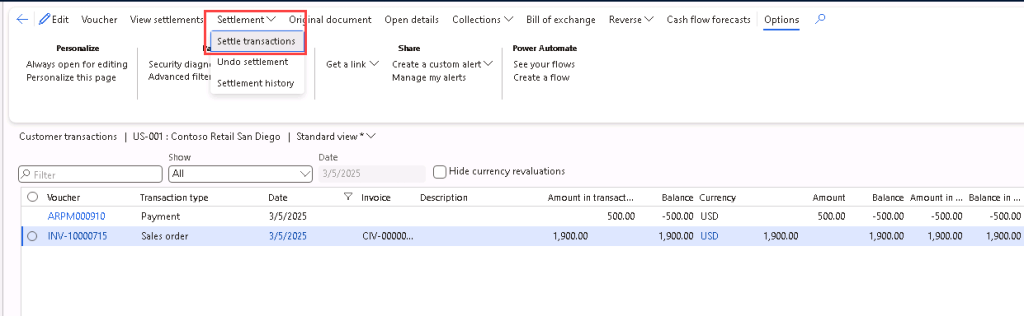
Mark the sales order invoice and the prepayment for settlement.
A message should pop-up asking if you want to mark the prepayment transaction for settlement. Click on “Yes”. Then, click on “Post”.
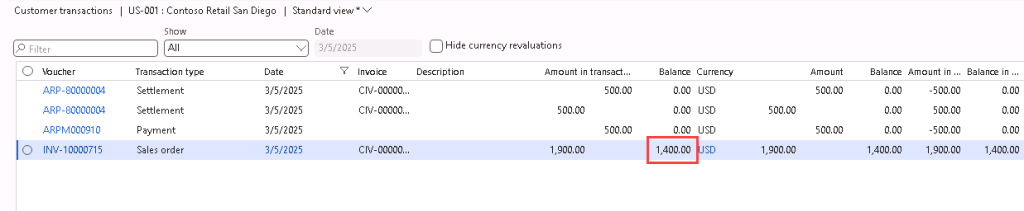
The settlement voucher will be posted on the customer transactions and the sales order invoice balance will be updated to the amount owe after applying the prepayment invoice.




 D365 Deep Dive
Leave a comment