

There are times when payment needs to be collected before the order is fulfilled, for example, a pre-order item or a make-to-order item. In D365 Finance, it allows you to collect prepayments from customer as a deposit. However, you do not issue an invoice to the customer or apply the prepayment to an invoice because there is no invoice being generated yet. With Version 10.0.41, a new feature called “Prepayment customer invoice feature” allows you to send a prepayment invoice to the customer to collect the payment and apply the partial payment to. The final invoice will be issued later when the sales order is fulfilled and the prepayment will be deducted from the final amount owed.

See related posts:
Customer Prepayment without an Invoice
Vendor Prepayment Invoice
Vendor Prepayment without an Invoice
When to use customer prepayment invoicing vs. customer prepayments?
| Prepayment invoicing | Prepayments |
| A prepayment invoice is created | No prepayment invoice needs to be created |
| Payment is applied to the prepayment invoice | Payment is not applied to any invoices |
| Prepayment value is defined on the sales order | No prepayment value is defined on the sales order |
| Only 1 prepayment can be defined and received for 1 sales order | No limit of number of prepayments to be received from customer |
| Liability for prepayment is held in the AR account. | Liability for prepayment is held in the prepayment account, not the AR account |
| The customer balance does not reflect the prepayment amount received from the customer | The customer balance reflects the prepayment amount received from the customer until it is applied to the customer invoice. |
| Prepayment collected will be reversed and applied to the final sales order invoice amount automatically through the ” Automated prepayment settlement posting” background process | User needs to manually apply the prepayment amount to settle against the customer invoice balance. |
| Depending on the AR Parameter setup, the prepayment amount will automatically be applied to the sales order invoice or a warning message will appear if the prepayment amount received is not applied to the customer invoice upon creating the sales order invoice | No warning or indication if the prepayment amount is not applied to the customer invoice. |
The customer prepayment invoicing feature has 4 major steps with the following accounting implications:
- Create sales order with prepayment invoice
Debit Accounts receivable $1,000
Credit Prepayment $1,000
- Receive payment for prepayment invoice
Debit Bank $1,000
Credit Accounts receivable $1,000
- Apply prepayment to sales order – this posting is delayed until the final sales order invoice is created and the “Automated prepayment settlement posting” background process has ran
Debit Prepayment $1,000
Credit Accounts receivable $1,000
- Create final sales order invoice
Debit Accounts receivable $1,900
Credit Revenue $1,900
Complete the necessary setups
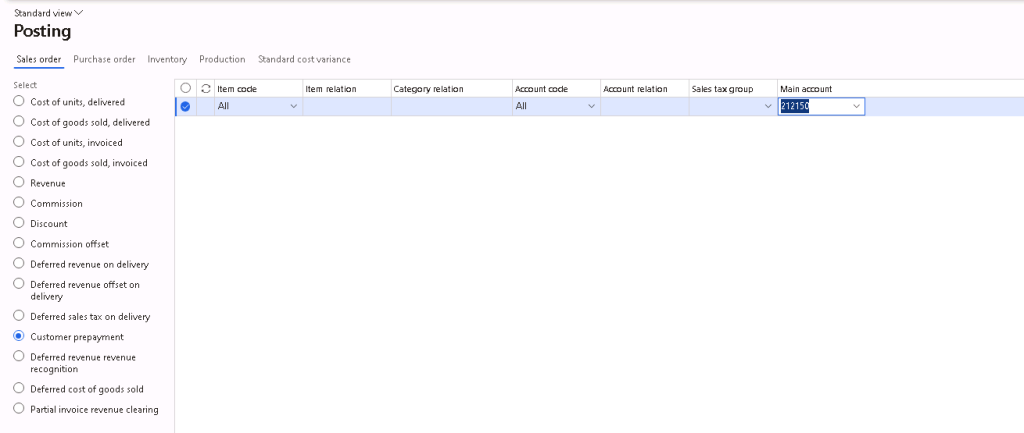
Navigate to Inventory management > Setup > Posting > Posting, under the Sales order tab > Customer Prepayment and enter the posting account for the prepayment.
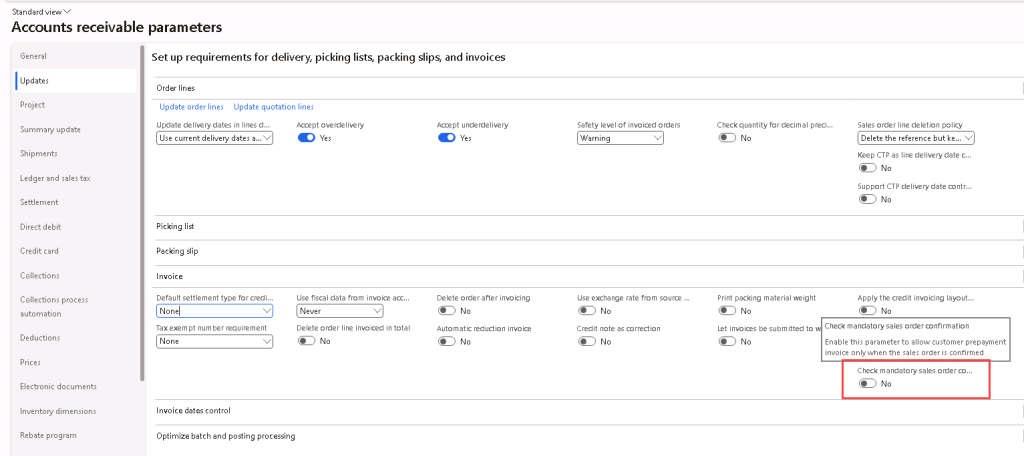
Navigate to Accounts Receivable > Setup > Accounts Receivable Parameters, under the Updates tab > Invoice section, select if “Check mandatory sales order confirmation” should be Yes/No. If this field is “Yes”, then customer prepayment invoice can only be created when the sales order is in “Confirmed” status.
On Accounts Receivable Parameters page, under the Ledger and sales tax tab > General section, select if the Prepayment application policy should be Notification or Automatic.
- Notification – When creating the final sales invoice, user will get a notification that there are available prepayments which has not been applied yet, and user will have to manually apply the prepayment to the Sales invoice.
- Automatic – Prepayments will be automatically applied to the sales invoice when sales invoice is being created.

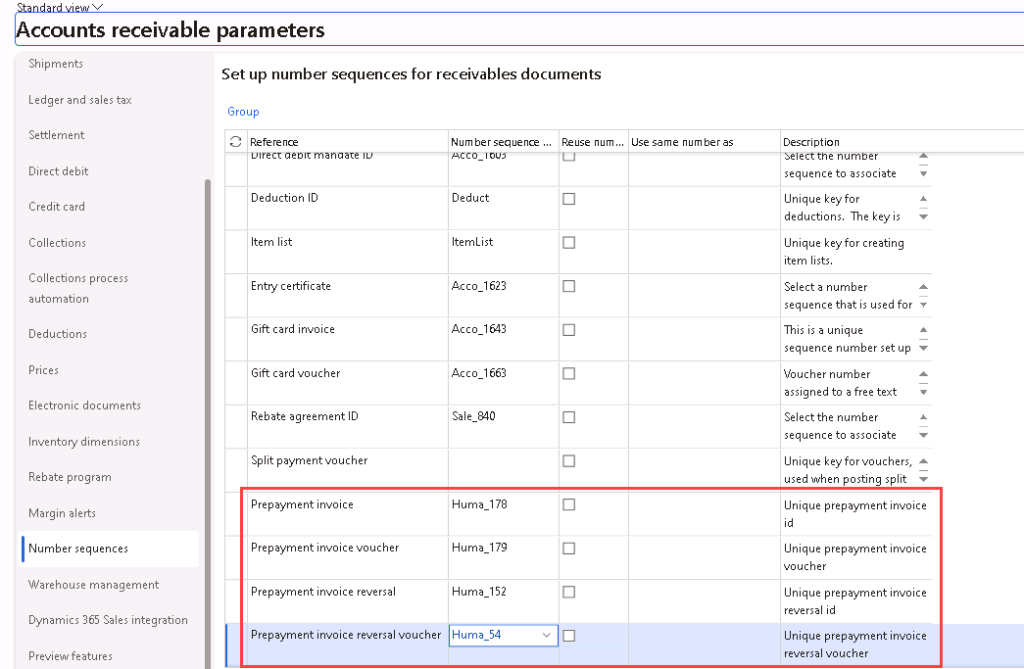
On Accounts Receivable Parameters page, under the Number Sequences tab, there will be 4 new number sequence references that need to be setup – Prepayment invoice, Prepayment invoice voucher, Prepayment invoice reversal, Prepayment invoice reversal voucher.
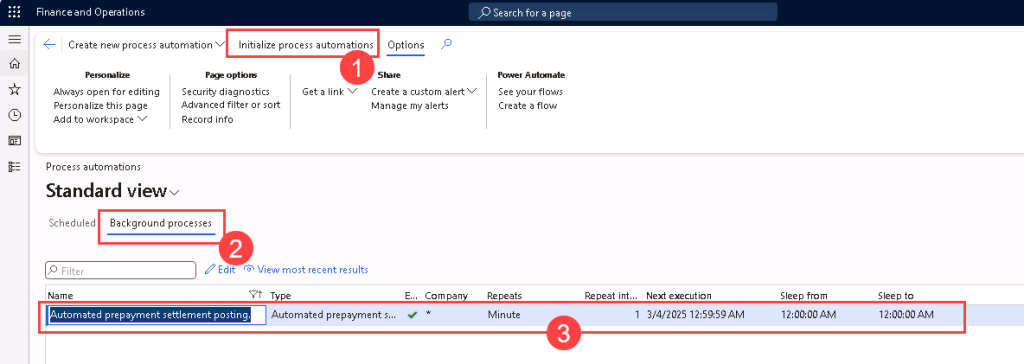
Navigate to System administration > Setup > Process automations, click on Initialize process automations. Then, click on Background processes tab > search for Automated prepayment settlement posting > Update interval to 1 minute.
Navigate to Sales and marketing > Setup > Categories > Sales categories, click on Edit category hierarchy. Then, create New category node. Name it as Sales prepayment and Save it.
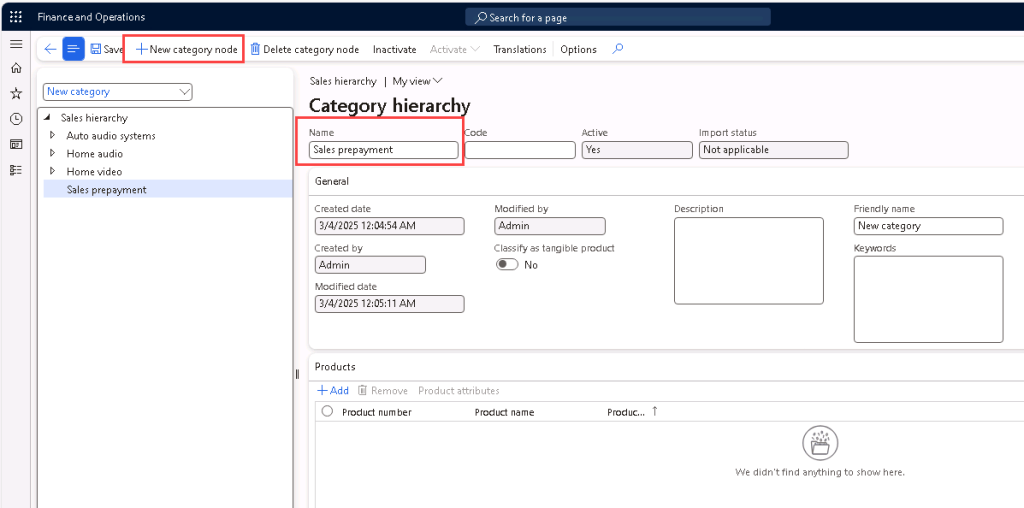
Step 1: Create sales order with prepayment invoice
Create a sales order (AR > Orders > All sales orders) with sales order line items. Total new amount for this sales order is $1,900.
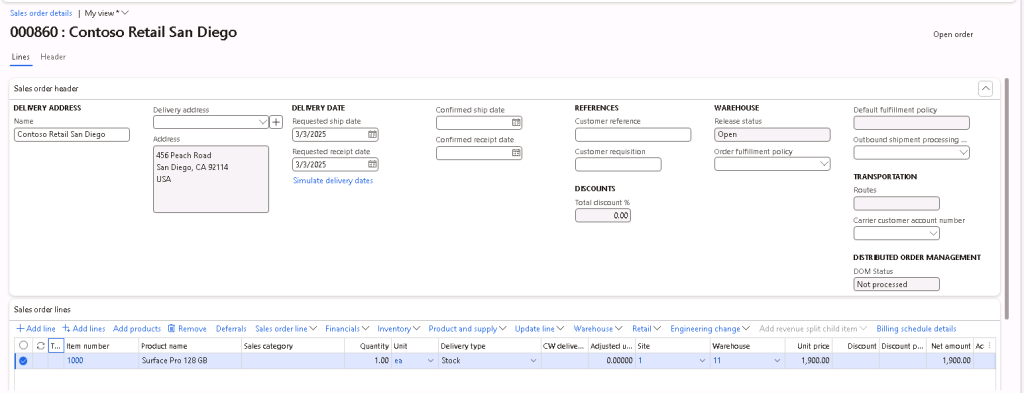
Confirm the sales order.
On the ribbon, select Invoice > Prepayment > Payment proposal.
Select the Prepayment type.
- Percent – The prepayment value field is enabled and you’ll enter the percentage of the total sales order amount that is required for prepayment. Then the Total prepayment amount will be automatically calculated based on the percentage entered in the Prepayment value field.
- Fixed – The Total prepayment amount field is enabled and you’ll enter the amount required for prepayment. Note that you will not be allowed to enter the prepayment amount that is larger than the total order amount.
Select the Sales category – Sales prepayment.
Click Save.
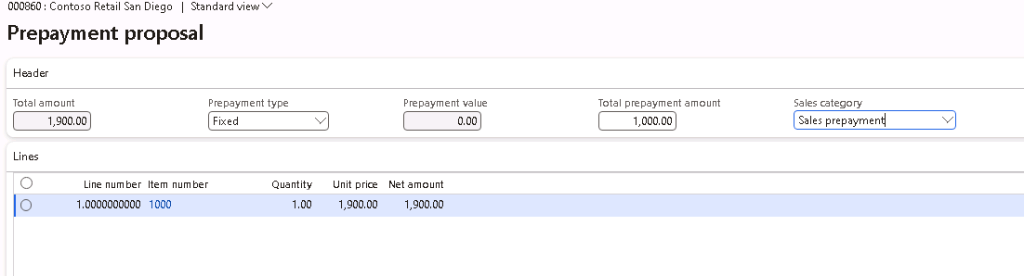
Back on the Sales Order, the Prepayment invoice field on the ribbon (Invoice > Prepayment > Prepayment invoice) will now be enabled. Click on the Prepayment invoice field.
Note that if on the AR Parameters’ “Check mandatory sales order confirmation” is “Yes”, then the prepayment invoice cannot be created if the Sales Order is not confirmed, and an error message will be displayed.

Confirm the details on the Prepayment invoice and click Post.

After posting the Prepayment invoice, you will see that the Prepayment status is now updated from “Open” to “Pending”. You may also print the document or view the voucher/journals.
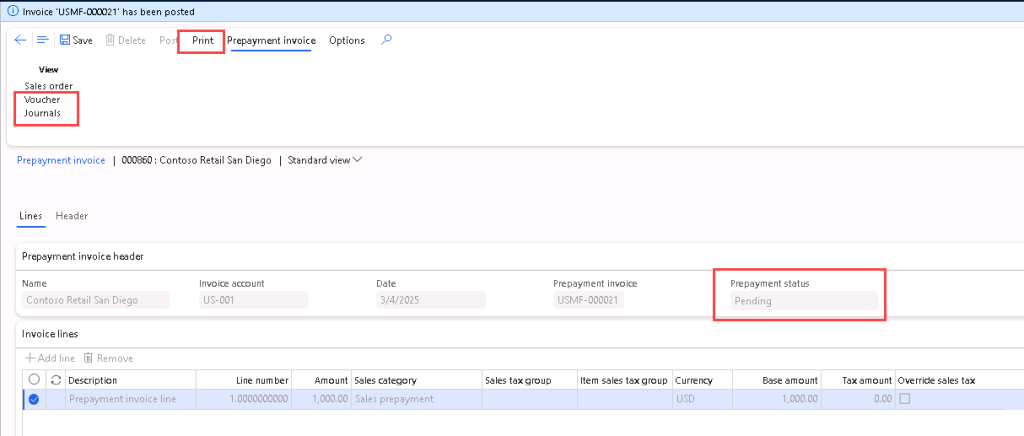


Step 2: Receive payment for prepayment invoice:
Create a customer payment journal (Accounts receivable > Payments > Customer payment journal).
Enter the customer account and click on Settle transactions to settle the prepayment invoice with the payment.
Post the customer payment journal.


Note that if partial payment is received, the Prepayment invoice’s Prepayment status will show “Partial payment” and the “Apply prepayment” button on the Sales Order will not be enabled until full payment is received.
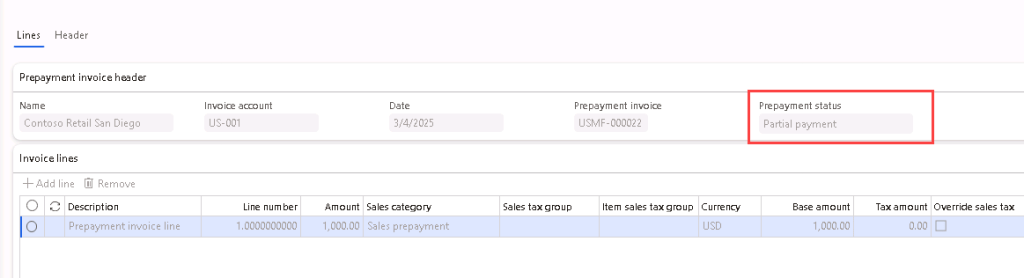
If the full payment is received, the Prepayment invoice’s Prepayment status will show “Received” and the “Apply prepayment” button on Sales Order will be enabled to proceed to next step.
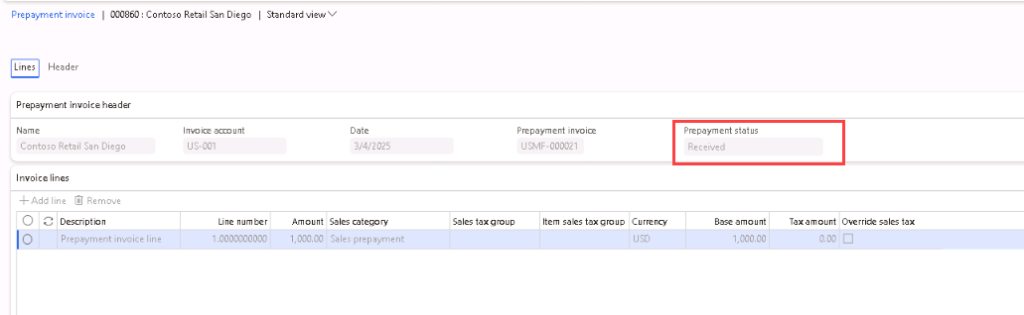
Step 3: Apply prepayment to sales order:
If you selected “Automatic” on the Account Receivable Parameters’ Prepayment application policy, then you do not need to do this step as the Prepayment will be automatically applied to the sales order upon posting the payment received in the previous step.
When there are payments posted against the prepayment invoice, the “Apply prepayment” button on the Sales order ribbon will be enabled (Invoice > Prepayment > Apply prepayment).
Click on “Apply prepayment”.
Select the prepayment line to be applied and click “Apply prepayment”.

Step 4: Create final sales order invoice
Generate the final invoice as you would normally generate invoice, Invoice > Generate > Invoice.
Note that if you have not apply the prepayment to the prepayment invoice, you will receive a pop up if you selected “Notification” on the Account Receivable Parameters’ Prepayment application policy.
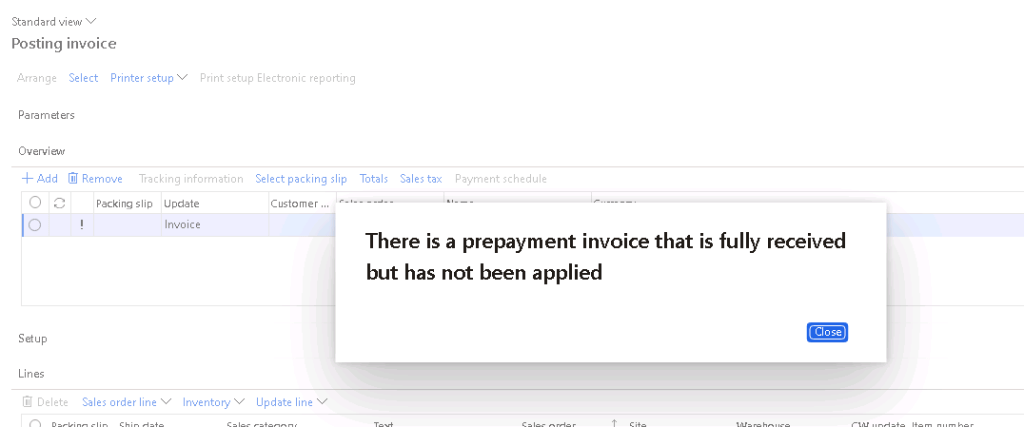
Under the Prepayment invoice tab you would see that the amount is applied.

Click OK to post the invoice.
Upon posting the sales order invoice, the customer transaction will show that this customer has a balance of the full sales order amount of $1,900.


Once the automated process for “Automated prepayment settlement posting” has ran, a voucher will be posted to apply the prepayment to the final sales order invoice and the balance will be updated to the remaining amount owe for $900.






 D365 Deep Dive
Leave a comment