

In D365 Finance, you have the flexibility to place a vendor on hold for various activities such as invoicing, payment, requisition, or purchase orders. However, if you choose to put a hold on the vendor account itself, it will impact all related activities for that vendor, not just a specific payment hold for a particular invoice. There might be times when the AP clerk needs to put a high value invoice on hold for payment, and putting the whole vendor account on hold might not be appropriate in these circumstances. To put certain invoices on hold only, it can be done when the invoice is being created or even after the invoice was posted.
If the vendor invoice has not been posted yet
- Navigate to Accounts Payable > Invoices > Invoice Journal.
- Create an invoice journal line.
- Navigate to Invoice tab and enter a date for the Invoice Payment Release Date.

If the vendor invoice was already posted
- Navigate to Accounts Payable > Invoices > Open vendor invoices.
- Select and open the Open vendor invoice that needs to have payment held.
- Navigate to General tab.
- Click Edit.
- Update the Invoice payment release date field.

If you need to hold the invoices for payment indefinitely, you could enter the Invoice payment release date of “12/30/2154” (Maximum allowed date in D365 Finance is 12/31/2154). Another way to hold invoices for payment indefinitely is to update the Posted vendor invoice’s General tab’s “Approved” field from “Yes” to “No”. By doing this, the invoice will not be shown under the settlement forms on payment journal to be settled against. However, note that this will remove the invoice from the “Open Vendor Invoice” list, but will be visible in the “Vendor transactions” and “Invoice Journal” lists.

How does the Invoice payment release date affect the Payment Journal?
- Navigate to Accounts Payable > Invoices > Open vendor invoices.
- Observe that there are 2 invoices from Vendor account 1001 with an Invoice payment release date of 3/15/2025 and 3/31/2025 respectively. Note that at this point this vendor is NOT on hold.

- Navigate to Accounts Payable > Payments > Vendor payment journal and create a payment journal.
- Create a line and enter a date before the invoice payment release date (example: 2/25/2025) and the vendor account and click on Settle transactions.

- On the Settle transactions form, try marking invoices 0225-01 and 0225-02 for payment.
Notice that the form will turn into Read-only and will not allow invoices 0225-01 and 0225-02 to be marked.
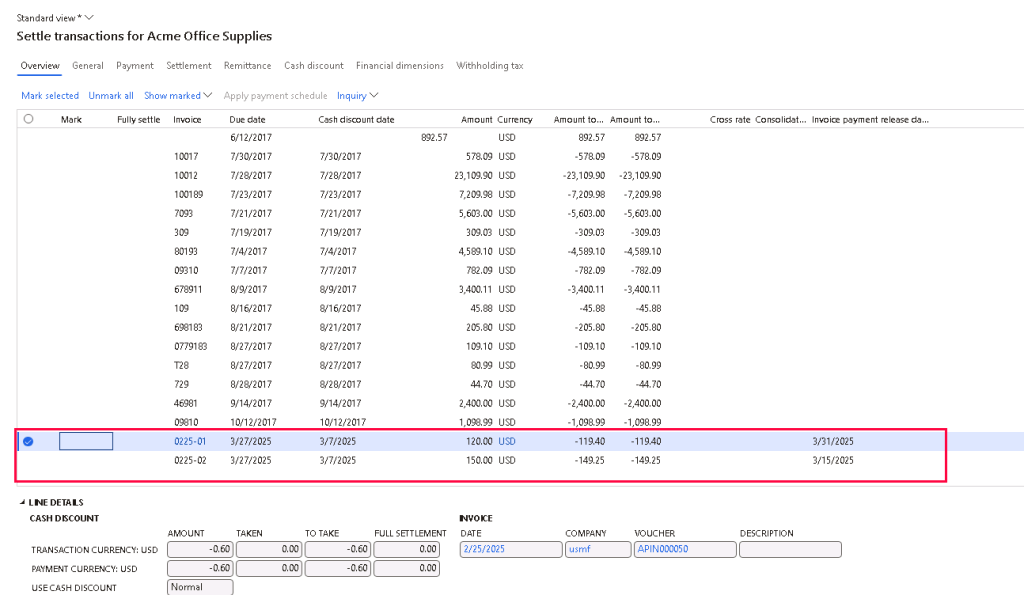
- Click on OK on the Settle Transaction form to close the form and update the date on the payment journal line to 3/20/2025 (after invoice payment release date for 0225-02 but before 0225-01’s) and click on Settle transactions again.
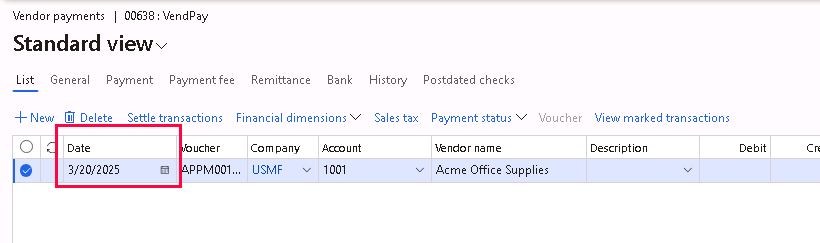
- Try marking the invoice that has a payment release date = 3/15/2025 (0225-02) – Marking is allowed.
- Try marking the invoice that has a payment release date = 3/31/2025 (0225-01) – Form turns to read-only.
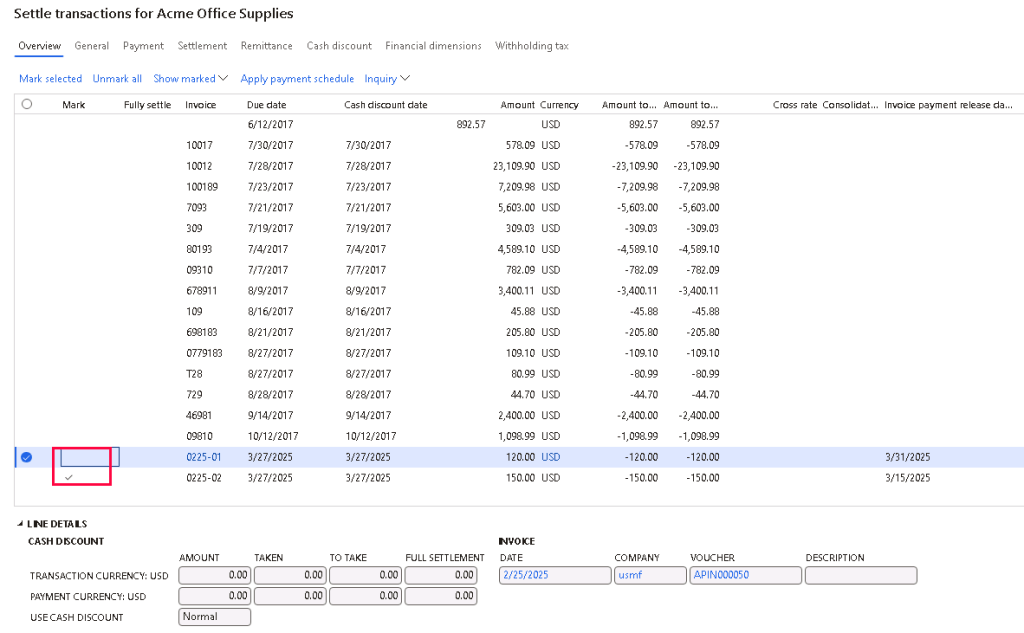
- Click on OK on the Settle Transaction form to close the form and update the date on the payment journal line to 4/1/2025 (after invoice payment release date for 0225-02 and 0225-01) and click on Settle transactions again.

- Try marking both invoices again. This time, the mark is allowed for both invoices as the payment date is after the Invoice payment release date that was specified on each invoice.




 D365 Deep Dive
Leave a reply to Krunal Thakkar Cancel reply