

D365 Finance offers the capability to define financial dimensions for transactions, making it easy to identify them across various departments, cost centers, projects, and other financial data tracked on the trial balance. Typically, once the account structure is established, companies avoid adding new financial dimensions unless absolutely necessary for reporting purposes to prevent inconsistencies and reporting issues. However, there are still certain details on accounting transactions that companies may want to track for further analysis, such as PO/SO numbers, invoice numbers, and customer/vendor groups. Since Version 10.0.32, D365 Finance has introduced financial tags, allowing companies to create tags to track these additional details on accounting transactions. These tags are not part of the accounting structure and offer more flexibility, enabling users to edit the tags after the transaction is posted if needed.
In Version 10.0.42, D365 Finance introduced a feature called “Financial tag defaulting rules.” This allows users to set predefined logic that automatically assigns financial tags during journal entries. This enhancement aims to minimize manual input and ensure greater data consistency.

In order to use this “Financial tag defaulting rules” feature, you must have financial tags created in the legal entity. Otherwise, after enabling the feature and upon navigating to General ledger > Financial tags > Financial tag rules, there will be an error.

To create a financial tag, navigate to General ledger > Financial tags > Financial tag and click New to create a new financial tag and select the Value type.
- Text – Free text field
- List – An existing list of tags for users to choose from (Customer, Item, Legal entities, Projects, etc.)
- Custom list – A custom list of tags for users to choose from. Define the custom list by clicking on “Tag values” on the ribbon.
As of writing this post in April 2025, there is a limit of 20 financial tags that can be created in each legal entity.
Create a financial tag defaulting rules by navigating to General ledger > Financial tags > Financial tag rules. If you’ve used financial tags in this legal entity before, there might be some default rules already created on this form.
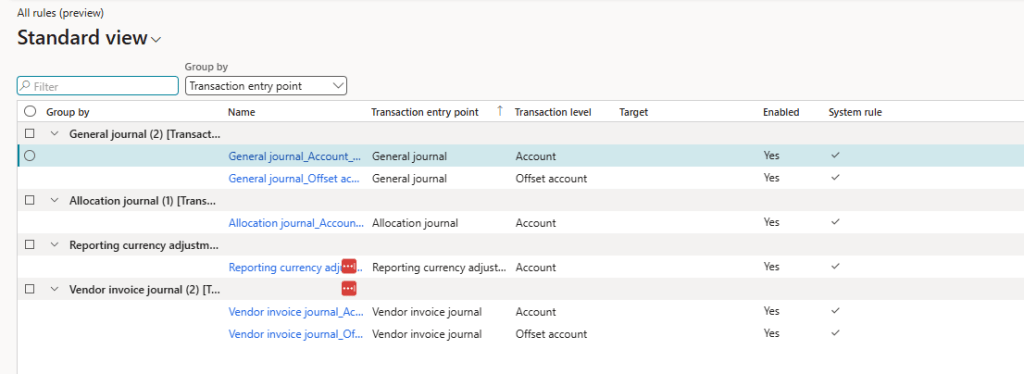
Click New to create a new rule. Select the “Transaction entry point” where the document will be entered to use this rule, and the “Transaction level” whether it should be the Header, Account, or Offset account. Then, select the “Target financial tag“. You may define the rule by using a PowerFx formula or click on “Conditions” to specify the conditions to build a set of conditions and outcomes to populate the target financial tag.
Currently the transaction entry point only supports General Journal/Global General Journal, Allocation Journal, Reporting currency adjustment journal, and Vendor Invoice Journal.
For example, I would like to setup a financial tag for Customer Groups that will automatically populate the journal line with existing customer groups as set up on my customer record if my General Journal account type is “Customer”. Otherwise, it will say “NonCustTxn”. In order for the rule to work best, select “Overwrite existing value” = “Yes”. Then, enable the rule.
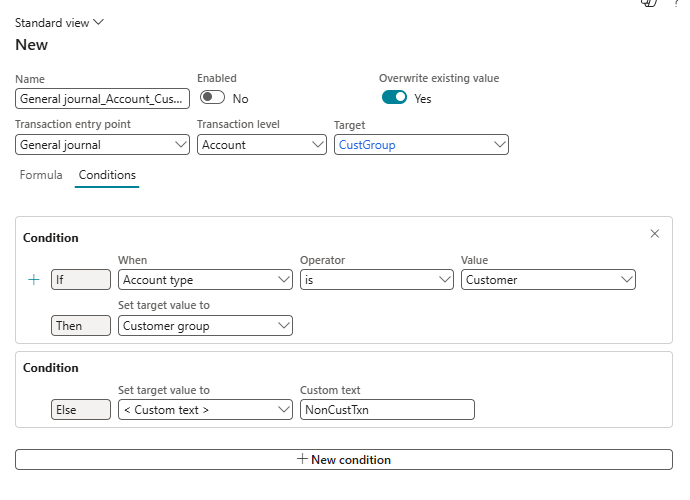
Note that I already have customers created that were already set up with the Customer groups and I would expect these customer groups to be pulled into my journal lines with the rules that I setup.

You may also simulate the rules with an existing journal that was already created to test the results by clicking on the Simulate button and select the journal number that you would like to simulate this rule. However, as of April 2025, the simulation results might not be 100% accurate and it would be better to test it by entering an actual journal entry instead of using this simulation process.

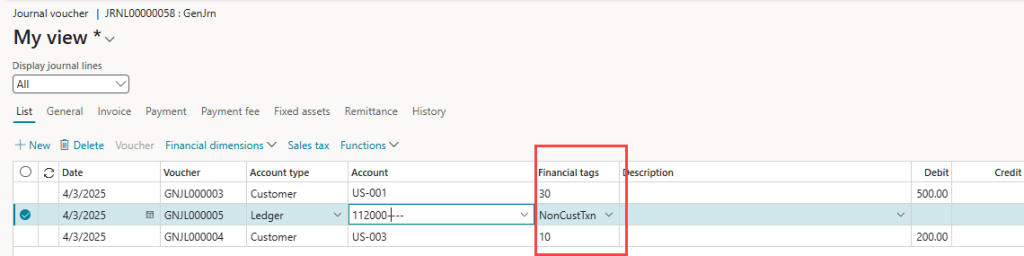
To see how the financial tag defaulting rule works in a journal, navigate to General ledger > Journal entries > General journals and enter a new journal.
When the Account type = Customer, it did automatically pull in the Customer Group as set up on Customers, and when Account type = Ledger, it will populate the Financial tag as “NonCustTxn”, thus showing that the financial tag defaulting rule is working as expected on the journal entry.




 D365 Deep Dive
Leave a comment