

D365 Finance has always had the functionality of running consolidations through the consolidation online method. However, the user has no easy way to access what or when the process was run other than looking at the Batch jobs (if they were ran with Batch processing), or look at the Consolidate transactions page.
With 10.0.40, a new feature “Consolidate online using templates” was introduced to enhance the process of running consolidations with a full audit history of what process was run. This feature lets you set up the consolidation information one time and then use it every time that the consolidation process is run. This updated Consolidate online page also now shows all the consolidation runs, reruns, and reversals. You may also drill down to the Consolidated transactions from this Consolidate online page as well.
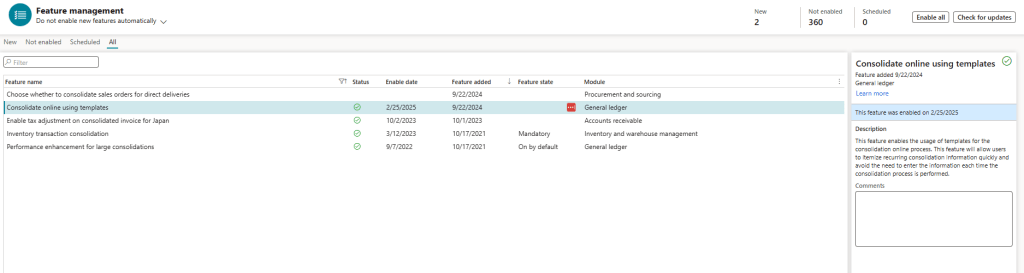
To enable the feature, navigate to Feature management and search for the “Consolidate online using templates” feature.
Before enabling this feature, the Consolidate online form looks like below, where it is more of a pop-up parameter page:

After enabling the feature, the Consolidate online form looks like below, where it has more information now.

A Consolidation online template needs to be setup before a consolidation can be run.
To setup the Consolidation online template, user may navigate from Consolidations > Setup > Consolidation online template setup, or from the Consolidation online page > Consolidation online template setup on the ribbon.
The parameters on the Consolidation online template page is fairly similar with the previous version.
Enter the consolidation setup on the template and save the template.


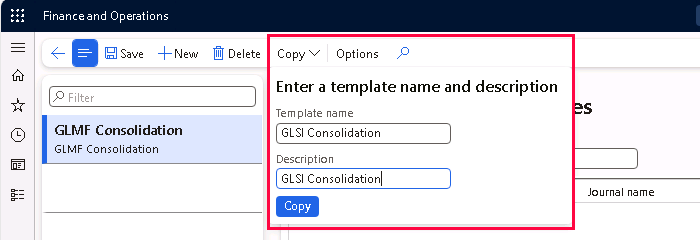
You may also make a copy of the template and adjust the consolidation setup as needed. It will copy most of the setups other than the “Legal Entities” section.
The copy function might also be useful if user would like to keep a copy of the previous template for audit purposes on the parameters ran on older consolidations.
Once the Consolidation online template is setup, user may now Perform consolidation on the Consolidate online page.
User will enter the Consolidation period and the Template to run. They will also have the option to “Rebuild balances during consolidation”. HOWEVER, Microsoft do not recommend to set the “Rebuild balances during consolidation” = “Yes”, but instead rebuild balances as a separate batch job on the financial dimension sets page.

Once the consolidation process is completed, the legal entities that were processed for consolidation will appear under the Consolidation history tab. Note that, with this feature enabled, the consolidation transactions will show up under the Consolidation history tab in the Consolidate online page, and will not show up on the Consolidation transactions page (Consolidations > Consolidation transactions) anymore.
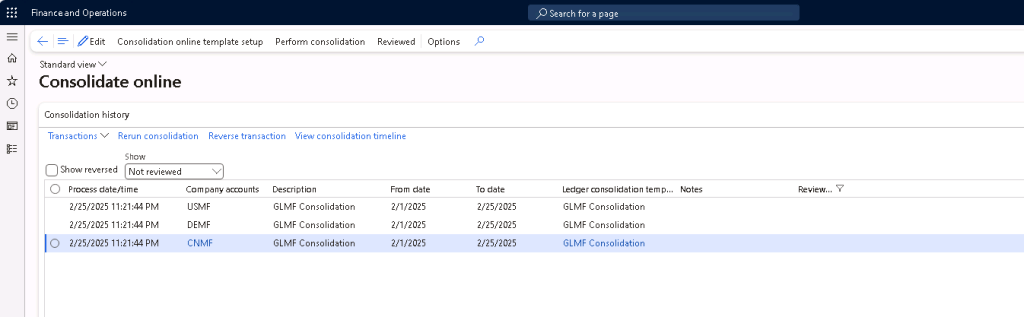
On the Consolidation history grid, user can Edit and enter Notes on each consolidation process

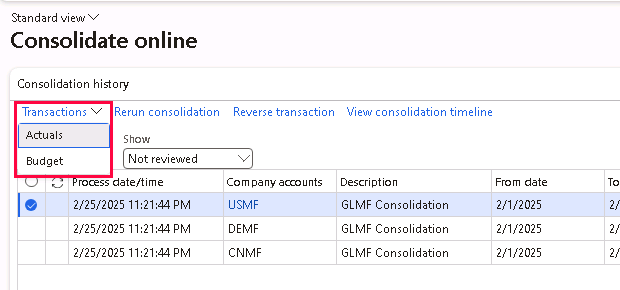
The consolidated transactions can be viewed by clicking Transactions > Actuals / Budget.
If the consolidation needs to be reversed, user can click on the “Reverse transaction” button.
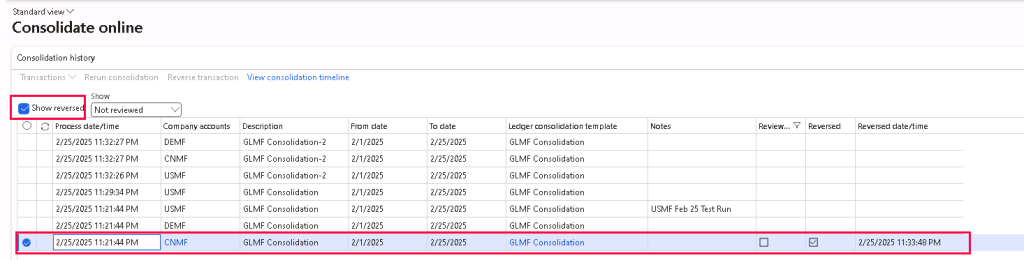
Note that before this new feature was enabled, Consolidation transactions that were removed will drop completely from the Consolidation transactions page. With this new feature, user can still see the historical record by selecting the “Show reversed” button.
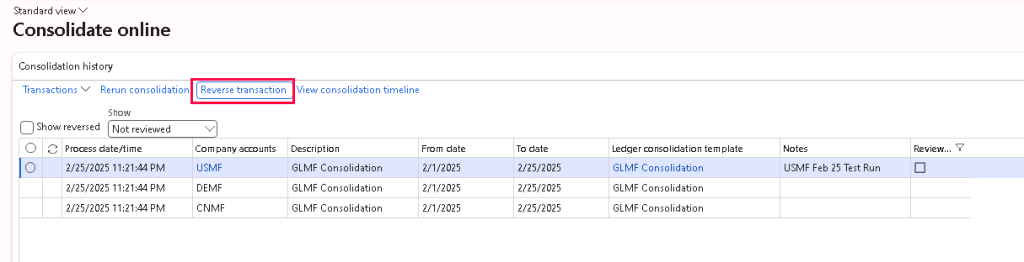
If the consolidation needs to be reran without any changes on the parameters, user can click on the “Rerun consolidation” button. After clicking the button, there will be a notification saying “The Rerun consolidation job is added to the batch queue”.
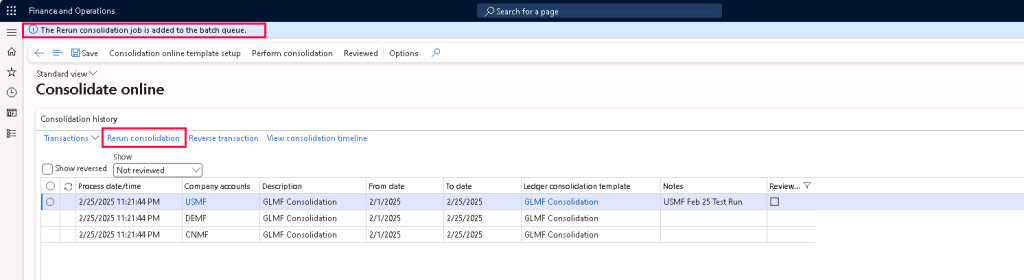
Note that the “Rerun consolidation” and “Reverse transaction” button can only be ran for one historical record at a time.
If the whole consolidation process for multiple legal entities, select the “Perform consolidation” option on the ribbon so that the previous consolidation process will be removed and reran for all the legal entities as stated in the template.
User can also select the “Reviewed” option to mark that the consolidation was reviewed and certified.
User can select multiple historical records simultaneously and have them all marked for “Reviewed”.

Note that after the record is marked for “Reviewed”, user no longer has the options to add Notes to the record anymore.
It is also worth noting that even though the records have been marked for “Reviewed”, user can still “Reverse transaction”, “Rerun transaction”, and “Perform consolidation” for the same legal entity for the same period again.
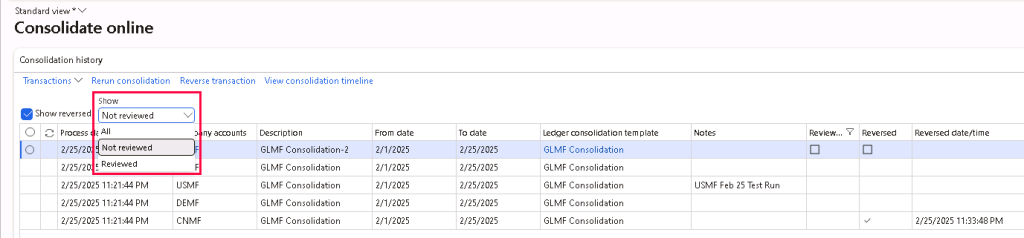
By default, the Consolidation history shows records that are “Not reviewed”.
To view records that are “Reviewed” or “All”, toggle to the corresponding option and it should show the related records.




 D365 Deep Dive
Leave a comment