

When a Customer / Vendor transaction is posted with a currency that differs from the Accounting / Reporting currency in D365 Finance, it needs to be revalued to account for fluctuations in exchange rates. To record this unrealized gain / loss amount, users must manually run the AR / AP Foreign Currency Revaluation periodic tasks, as there is no option to automate this process due to the need for constant updates to the parameters for the Date of rate and Considered date.
However, in version 10.0.43, there is a new feature being introduced – “Enable process automation for accounts receivable and accounts payable foreign currency revaluation“. As of publishing this article in March 2025, this feature is currently under Preview mode and can be enabled under Feature management page.

After the feature is enabled, users still have the option to run ad-hoc Foreign currency revaluation on the AR / AP module as needed.
Accounts receivable > Periodic tasks > Foreign currency automation
Accounts payable > Periodic tasks > Foreign currency automation
With the feature enabled, under the above two menu items, there will be a new menu item – Foreign currency revaluation automation in each module respectively.
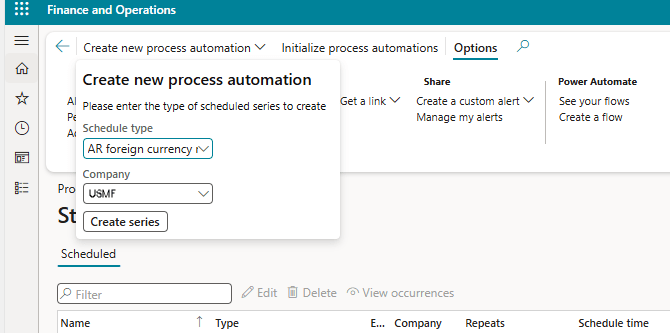
On each of the Foreign currency revaluation automation page, click on “Create new process automation” and select AR foreign currency revaluation or AP foreign currency revaluation respectively and select the Company for the automation to run. Then, click on Create series.
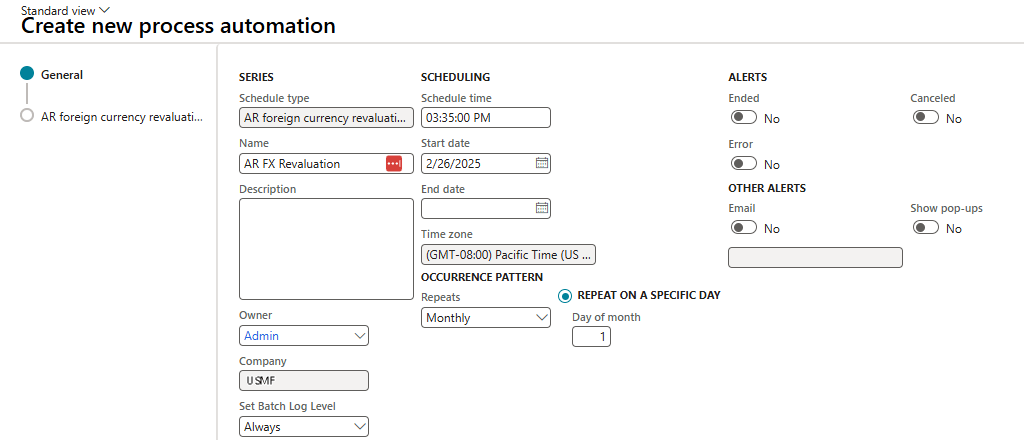
Enter the scheduling details and define how often should the revaluation be ran.
Foreign currency revaluations are usually ran for the end of the month, you may define a Monthly interval to run it on the first day of the month, for example.
On the next page, you may adjust the number of days for date of rate and considered date.
To run this automation on the 1st of every month for invoices as of end of last month’s rate, set “Number of days adjustment for date of rate” = -1 and “Number of days for considered date” = -1.

When you’re done with defining the parameters, click Finish.
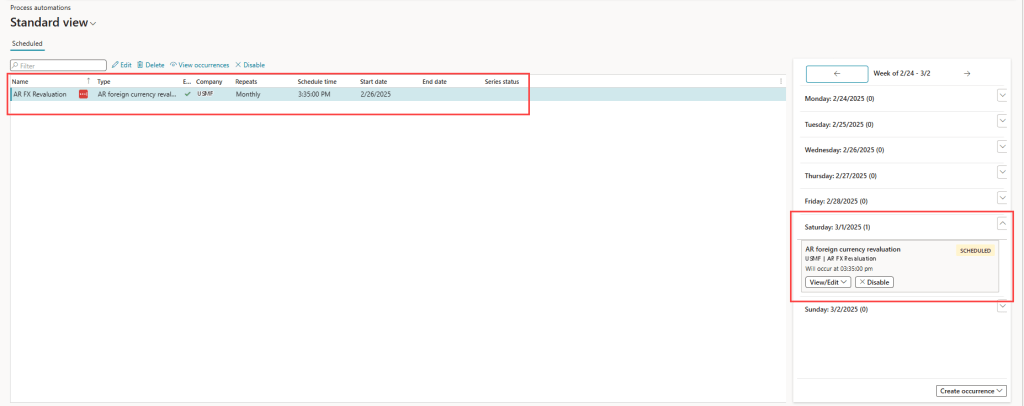
On the Process automation page, you will see the series that you’ve scheduled and the schedule for the future.
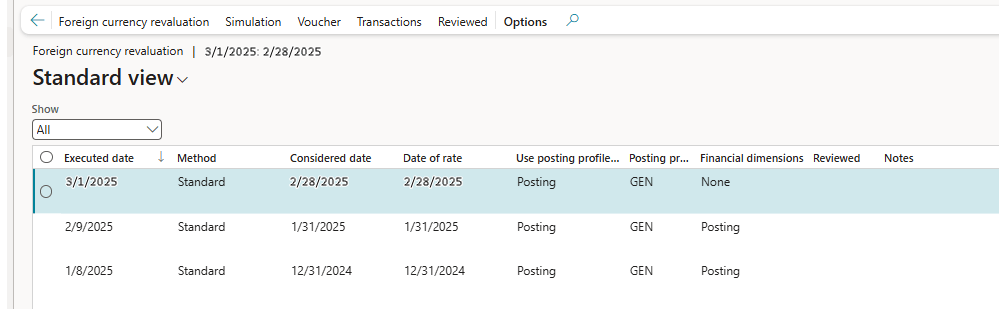
After the process is completed during the scheduled time, you may review the results.
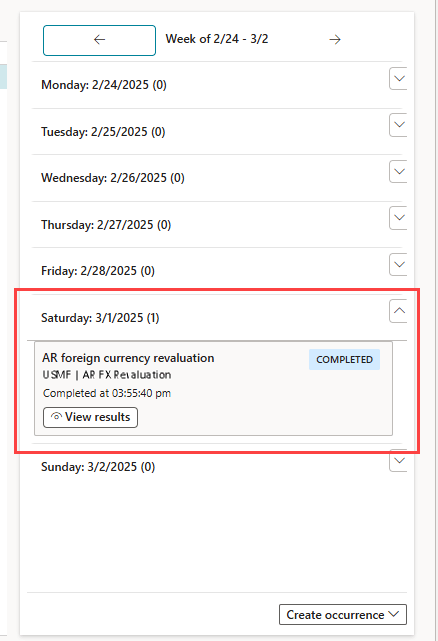
Click on “View foreign currency revaluation history” to view the voucher / transactions posted.




 D365 Deep Dive
Leave a comment